|
Inductions and Licences |
  
|
|
Inductions and Licences |
|
Adding an Induction/Licence
1. Go to the File menu located at the top left of the Manstat screen, System Setup – Lookup Table Maintenance as shown below
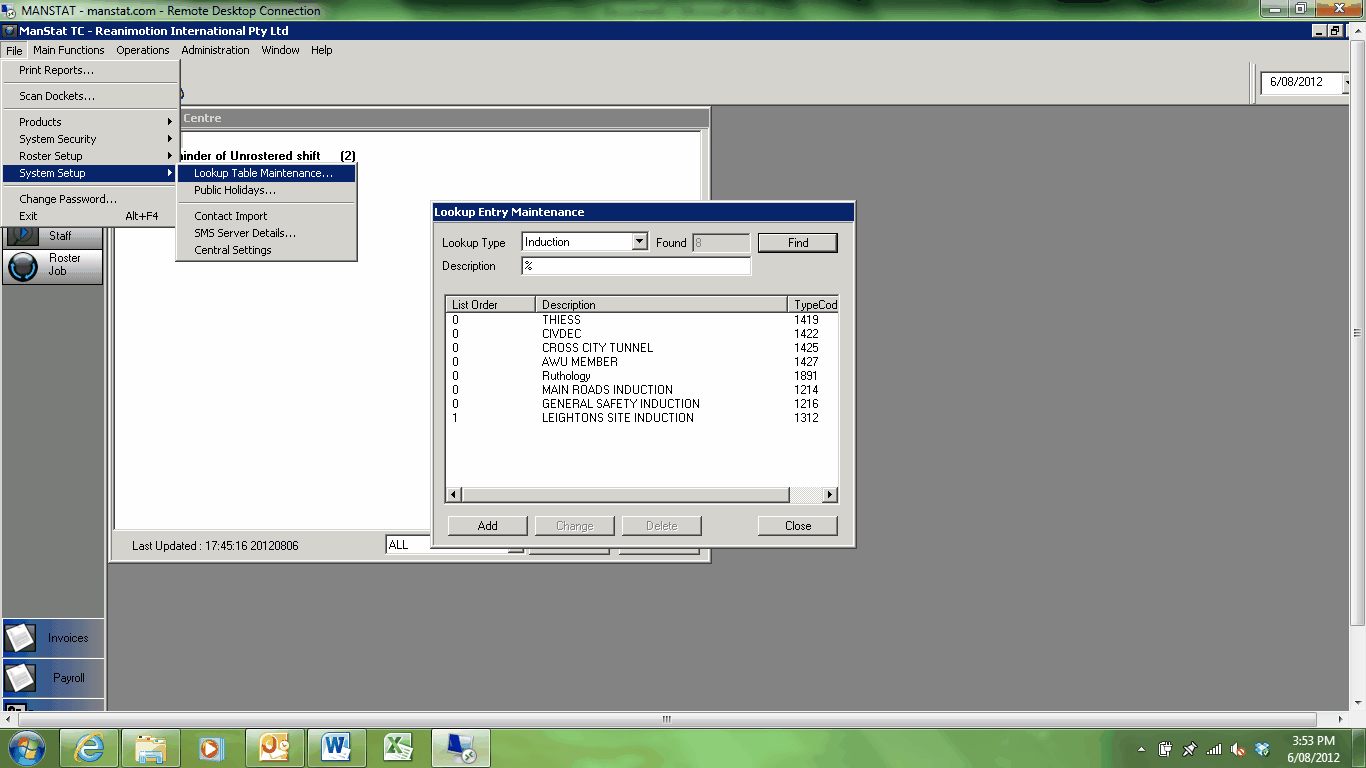
2. Select the Lookup Type i.e. Induction or Licence and press Find to make sure it hasn’t been added already
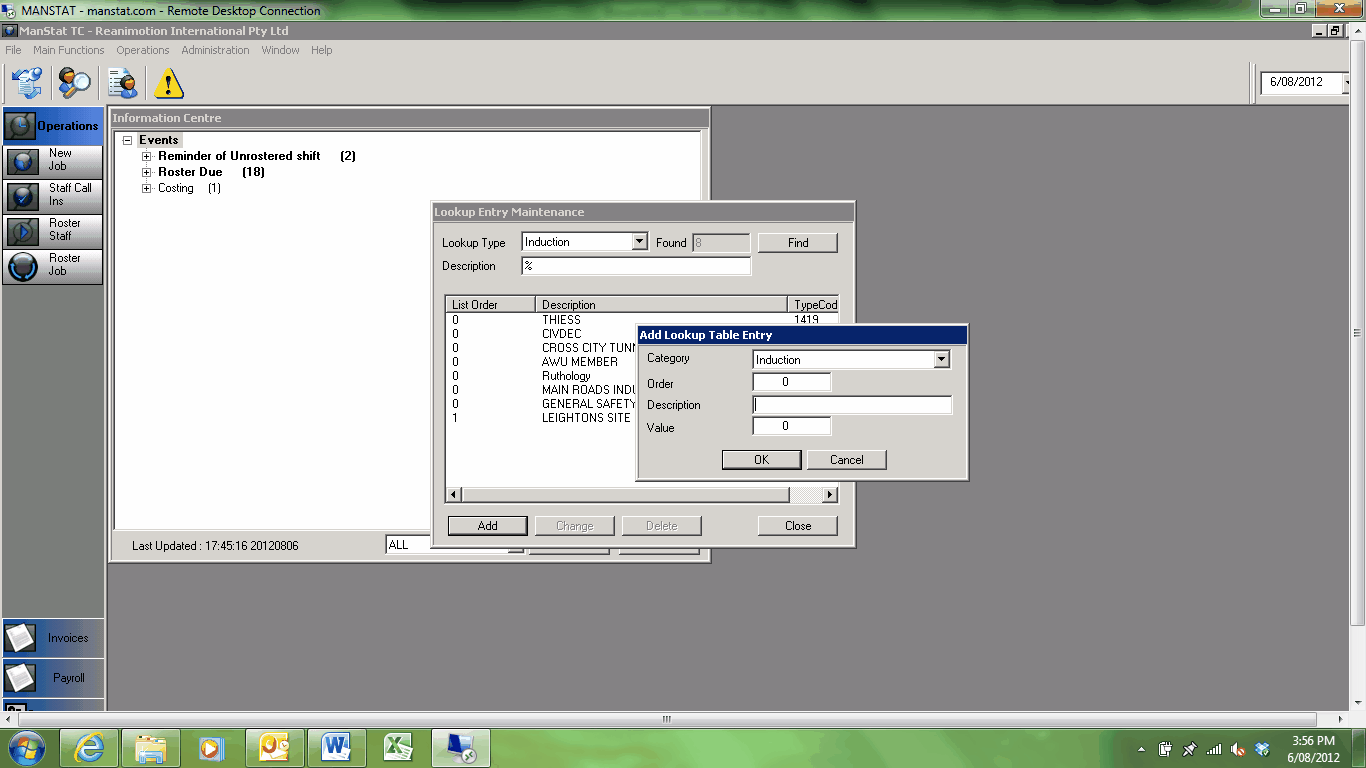
3. Press the Add button and enter in the Description of the induction or licence i.e. ABC Company Induction or Drivers Licence and press OK.
Enter a value of -1 will set the licence to critical status stopping rostering on expiry -2 is non-critical
4. Now go to the respective client that requires the induction or licence by selecting  , entering the client name in the Company section and press Find
5. Highlight the client and press Change
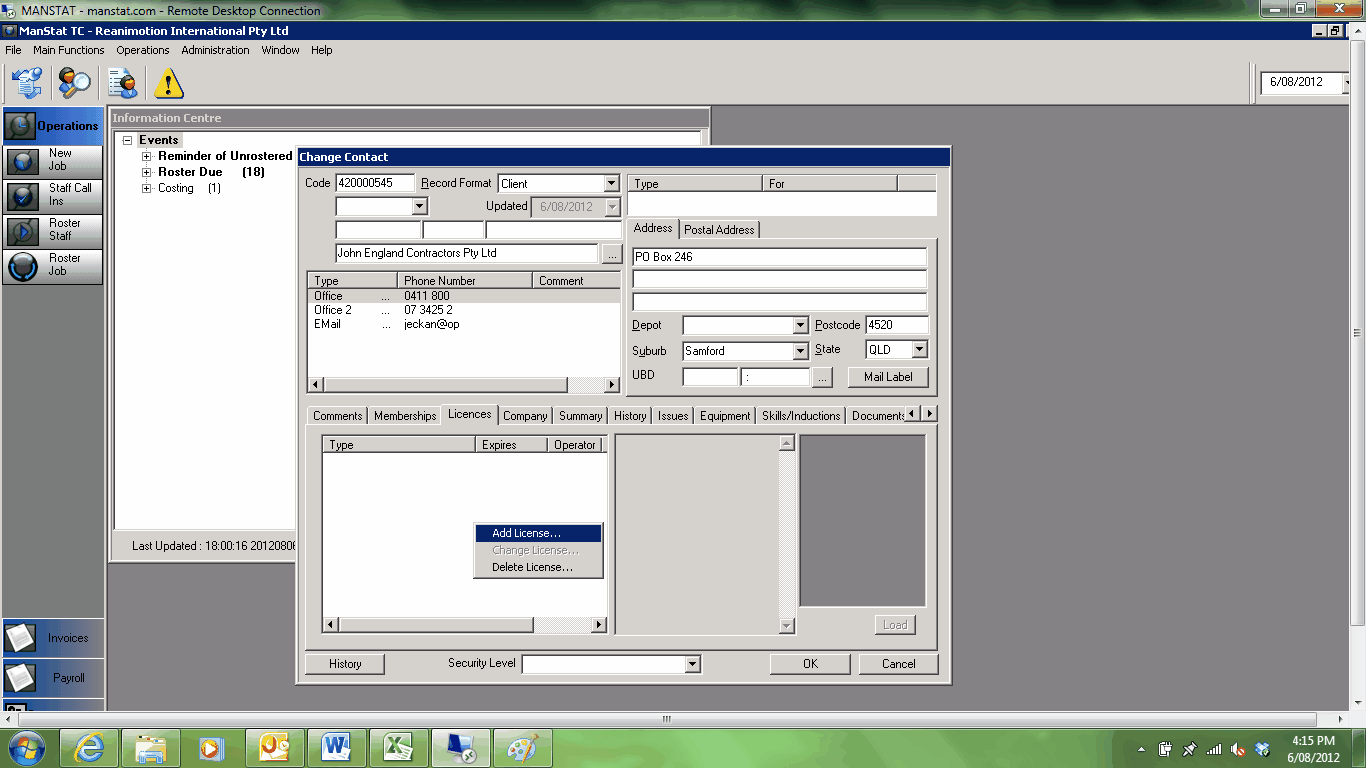
6. Go to the Licences and/or Induction tab, right click in the white section and select Add Licence/Add Skill/Induction as below
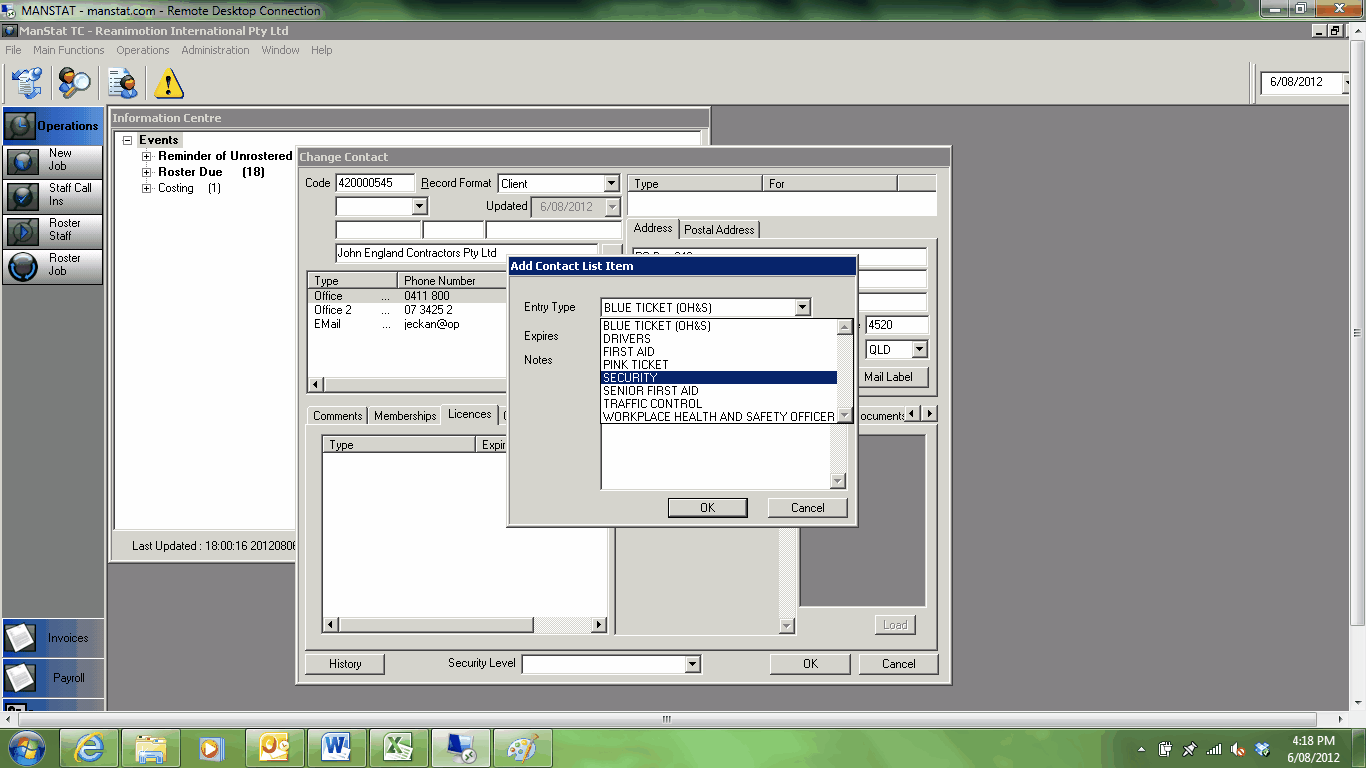
7. Select the Licence/Induction, add an expiry date and number relating to ticket (if required) and press OK and then OK again on the client card. Employees will now need those particular licences or inductions to work at this client’s site.
8. Go to the employee card to add a licence and/or induction by pressing the  button and searching for said employee
9. Select the employee by highlighting their name and click Change
10. Select either the Licence or Skill/Induction tab and right click in the white section and press Add ….. as below
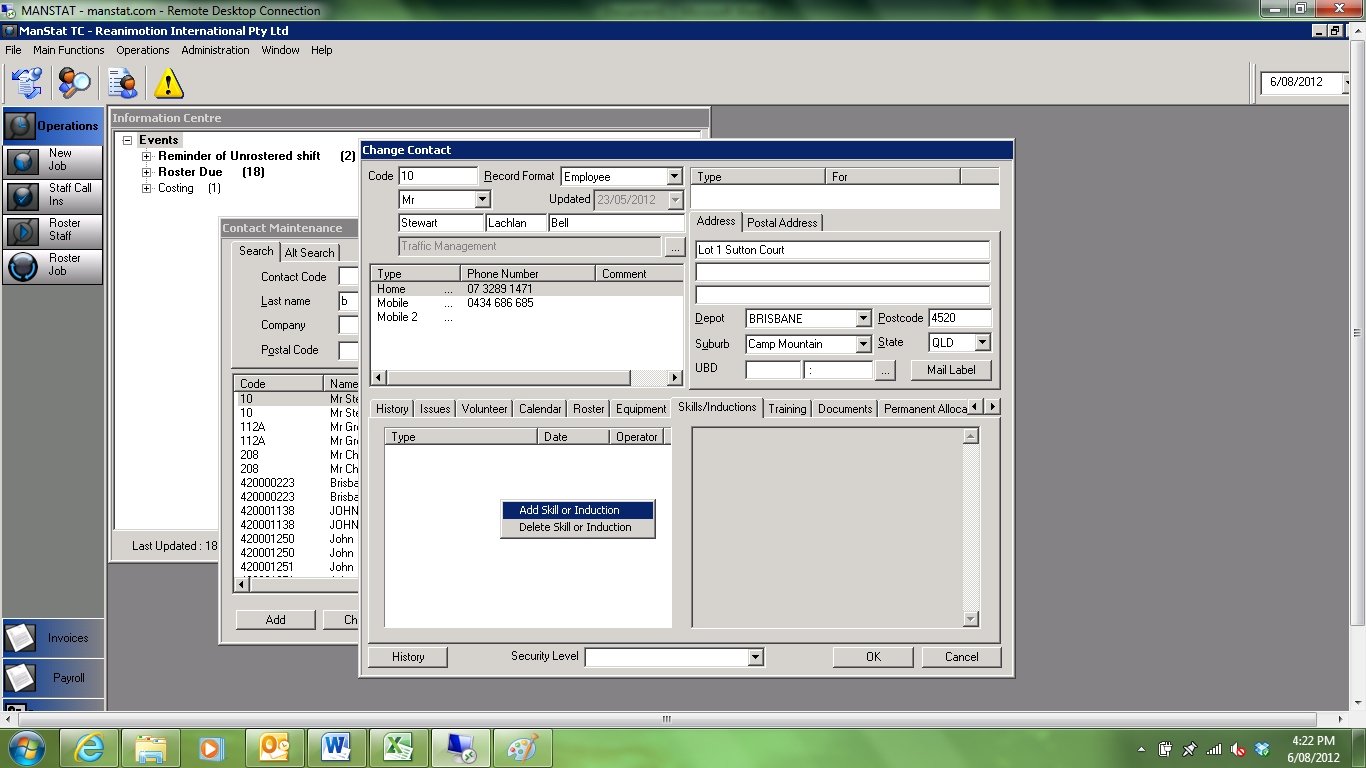
11. Select which Induction along with an expire date if required and any other information relating the Licence/Induction. Press OK and then OK on the employee file. This employee is now available to work at the specified site