|
Contact Management |
  
|
|
Contact Management |
|
This function can be selected from the Main Functions menu at the top of the ManStat screen, or it can be selected by clicking on the Contact button on the toolbar. The Contact Maintenance search screen will then appear.
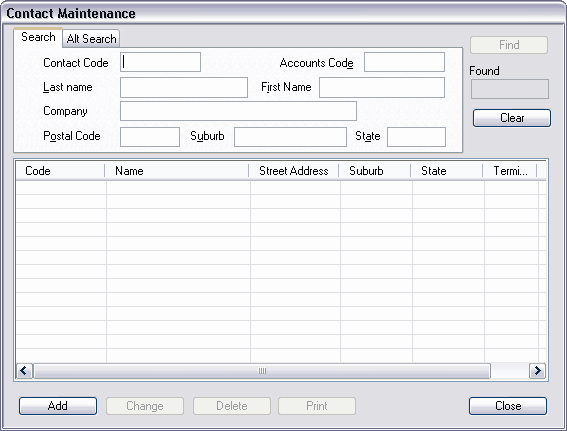
To add a new contact, simply click on the Add button located at the bottom left of the Contact Maintenance screen. This will reveal the Add Contact screen. For further information on adding new contacts, please refer to the Help chapter entitled "Adding a New Contact".
The Contact Maintenance screen allows you to quickly find the records of an existing contact by simply entering one or more search criteria, for example a last name, company name, or a contact code. (The contact code is a unique code generated by ManStat given to each contact entry). This will be necessary when locating a contact that requires updating or deleting.
Enter the details known into the relevant fields. If you do not know the complete details, simply enter the characters known and insert a Wildcard for the missing characters. For more information on the use of Wildcards, please refer to the Help chapter entitled "Wildcards". Then click on the Find button (or press the Enter key on your keyboard).
Please note that if you are entering a contact code as the search criteria, ManStat will not allow you to enter other search criteria in any other field. Please also note that you can not use a Wildcard in the Contact Code field.
It is also possible to locate a particular record by using alternate search criteria, such as phone number, credit card number or date of birth. Simply click on the Alt Search tab to reveal the alternate search criteria fields.
If more than a certain number of entries meet the search criteria entered, ManStat will ask you to further refine the search criteria. If there is less than this predefined number of matching contacts, they will be listed in the list view field at the bottom of the Contact Maintenance screen. The total number of matching entries found will be displayed in the Found display box. (For more information on defining this number of entries, please refer to the Help chapter entitled "Install Process".)
If you wish to quickly clear all fields in the Contact Maintenance screen, simply click on the Clear button located on the right of the screen. ManStat will then empty all fields, allowing you to quickly enter new search criteria.
If an existing contact has more than one address, ManStat will list each address as a separate line item. In other words, if a contact has a home address, a work address and a mailing address recorded, ManStat will display this contact three times in the list view field at the bottom of the Contact Maintenance screen.
Simply scroll down and select the entry you want to change or delete. If you wish to delete the selected entry, click on the Delete button. The Delete Contact screen will then appear. Check all the details displayed to ensure that this contact can be deleted, and then click on the Delete button located at the bottom of the Delete Contact screen, or simply click on the Cancel button to return to the Contact Maintenance screen without deleting this entry.
Please note that if this particular contact is referenced in any way (for example if it is listed in a relationship with another contact), ManStat will not allow you to delete it.
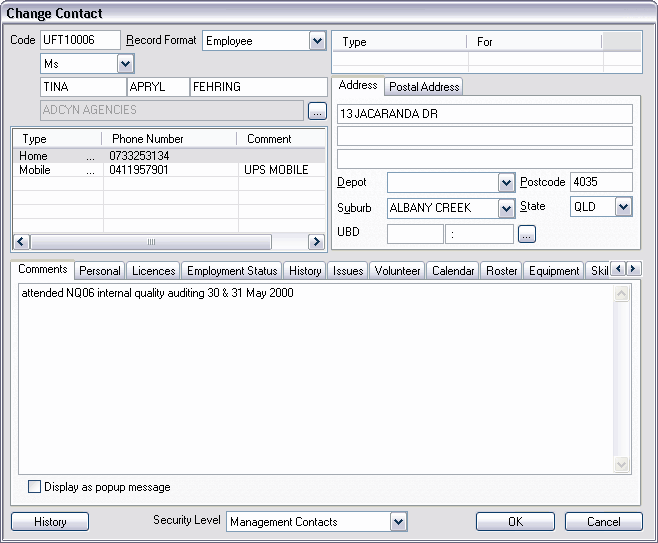
If you wish to change this contact's information, simply click on the Change button, (or simply double click on the relevant record). The Change Contact screen will then appear.
If the contact has certain flags set such as closed by company, closed by customer, deceased, ceased trading or internal alert you may receive a dialog alerting you to this fact. ManStat may also limit what you can do with this contact depending on your security clearance. For example, you may not be able to open that contacts record or modify data on it without the appropriate clearance if these flags are set.
At the top left of the Change Contact screen the unique contact code is displayed. Below this contact code there is a field that displays the contact record format (for example an individual, a company or a joint contact.) Once a contact record has been saved you cannot change the contact record format unless you have access to the security function that allows you to do so.
The contact's name, position details, and company name are displayed at the top right of this screen. These details may be edited by simply clicking on the field you want to change, and typing in the new information.
Depending upon the type of record being edited, a … button may appear next to the Company field. Clicking on this button reveals the Contact Find screen. This screen will allow you to quickly reference existing contacts that may be similar or related to the entry you are creating. For more information on how to use the Contact Find screen, please refer to the Help chapter entitled "Contact Find".
Below the contact name, the position details and the company name, ManStat will display an Access By field and a Modify By field. These fields can be used to limit who can access this contact's information, and who can modify or change this contact's information. To determine who has the ability to access or modify this contact's details, simply elect the appropriate security function from these drop down lists. For more information on security functions, please refer to the Help chapter entitled "Security Functions Maintenance".
To enter or update the electronic address details (such as the phone number or email address) simply right click on the relevant field or entry, and select the appropriate function from the menu displayed. The Change Phone Number function will reveal the Change Phone Number screen. Adding and deleting existing electronic address details can be done by selecting the relevant choice from the menu displayed.
If your system is supported by the technology, it is possible to direct dial a telephone number listed here by simply right clicking on the relevant entry and then selecting Execute from the menu displayed. If the contact details listed are email or internet addresses, ManStat will also allow you to connect to the addresses by right clicking on the relevant listing and selecting Execute from the menu displayed.
At the top of this screen is the Phone Type field, which is read only. This field will detail the type of electronic address that this entry represents. When a new number is added, ManStat allows you to choose the phone type from the associated drop down list.
Enter the new details in the Phone Number field, and a short description in the Comments field. Three check boxes are displayed in this screen. By selecting or de-selecting these you can record information specific to these contact numbers, such as whether to market or sell to the contact using these numbers, or whether the number is listed or is silent. Once you have entered or updated these contact details, simply click on the OK button to return to the Change Contact screen.
At the bottom of the Change Contact screen various tabs are displayed. These tabs allow various types of information to be viewed and updated for each contact, including the types of transactions made, the types of mailings sent, and the relationships that exist with other contacts. For a detailed description of each of these tabs, please refer to the Help chapter entitled "Contact Tabs".
Please note that many of the fields contained in these tabs will display information that is automatically updated by ManStat, and will therefore be read only fields.
Once you have made the required changes to this contact, simply click on the OK button located at the bottom of the Change Contact screen. If you do not wish to continue with saving these changes to this new contact, simply click on the Cancel button located at the bottom of the screen.