OPEN EMPLOYEE FILE IN ManStat
| 2. | Click on the  icon at the top left of the screen icon at the top left of the screen |
| 3. | Enter the employee's last name and first name and click Find |
| 4. | ManStat may find several employees with that name. Double click on the employee you want |
SAVE EMPLOYEE PHOTO IN ManStat
| 1. | When the employee file is open click on the Personal tab |
| 2. | On the right hand side click on the Load button |
| 3. | A small window will appear (as below). Click on the icon on the far left  to Open File to Open File |
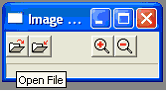
| 4. | Another window will appear which will allow you to locate the photo you have saved |
| 5. | When you have located the photo, select it and then click Open |
| 6. | The photo will appear in the new window. Now click on the icon second from the left  to Save File to Save File |
| 7. | The photo should appear in the employee file. Now click the  Close button above the photo Close button above the photo |
| 8. | The employee file should now contain a photo above the Load button (in the Personal tab) |
| 9. | Click the OK button on the bottom right to save the photo to the employee file. |
| 10. | A small window will appear. Click on the drop-down menu and select Loaded Photo. |
| 11. | In the text box below the drop-down menu type: PHOTO ADDED TO FILE |
| 12. | Click OK. The employee file will then save and close. |


