|
Changing Shifts |
  
|
|
Changing Shifts |
|
Changing a shift when an employee is allocated
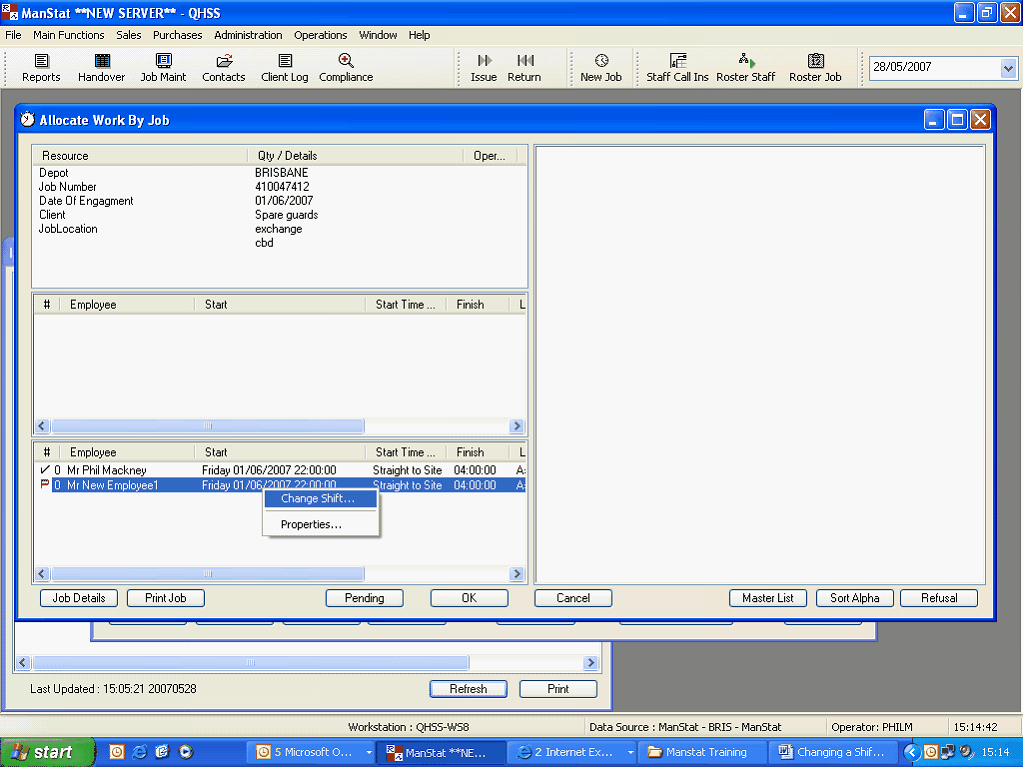
| 1. | Select Job where shift is located |
| 2. | Select Shift by clicking once |
| 3. | Right Click over shift as above and two options will be displayed |
| 4. | Click "Change Shift", |
| 5. | "change Job Shift" window will appear |
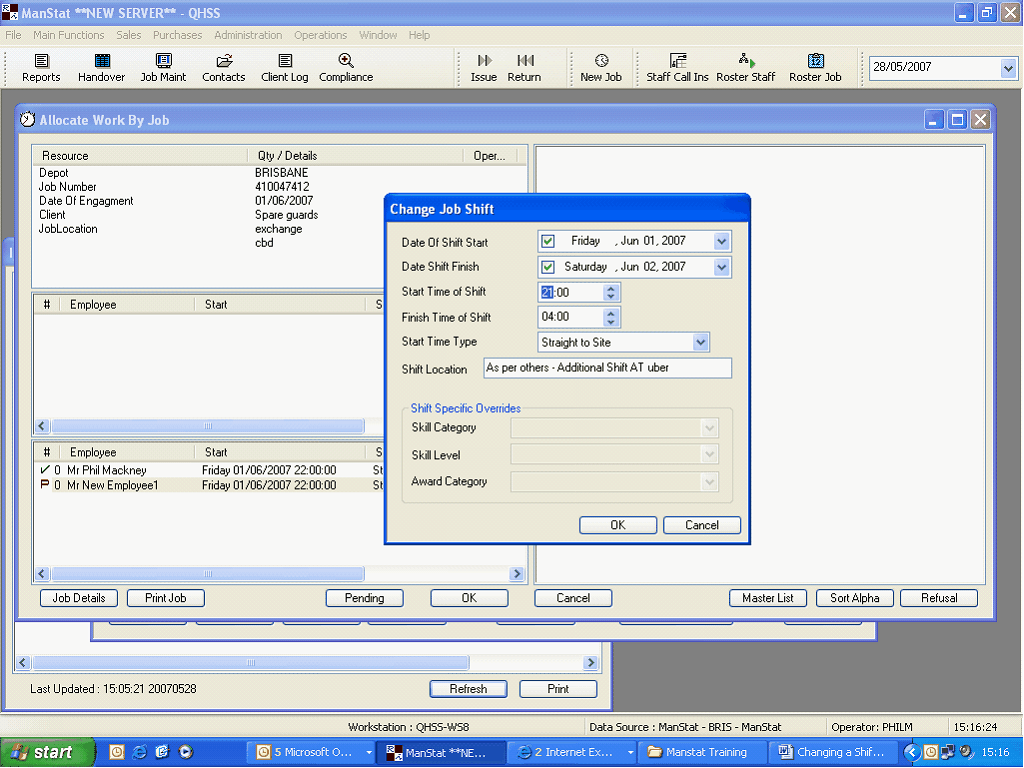
| 1. | Change times and/or dates as required using the drop down boxes |
| 2. | Click "OK" in the "Change Job Shift" Window |
| 3. | Click "Pending" DO NOT CLICK OK, this will show the shift as confirmed for that staff member |
| 4. | you will return to the Information Centre main page |
Changing a shift when there are no staff allocated
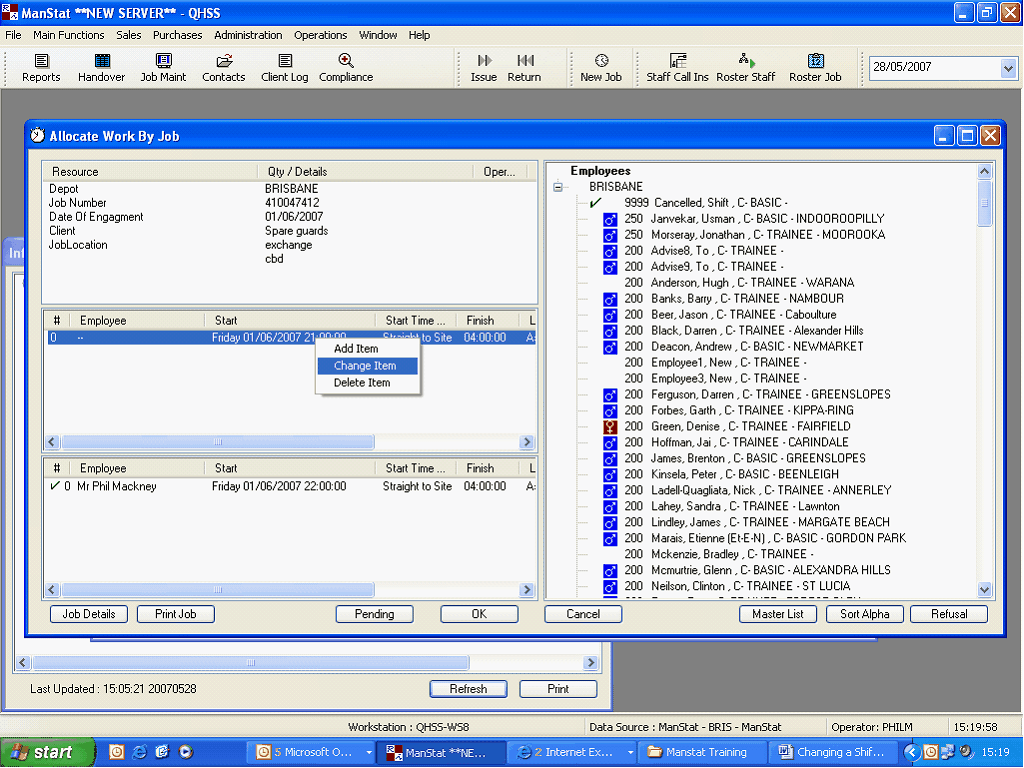
| 1. | Select Job where shift is located through Job Maintenance |
| 2. | "Allocate Work by Job" will appear |
| 3. | Select Shift required by clicking once |
| 4. | Right Click over shift, three options will appear |
| 5. | Click "Change Item" as above |
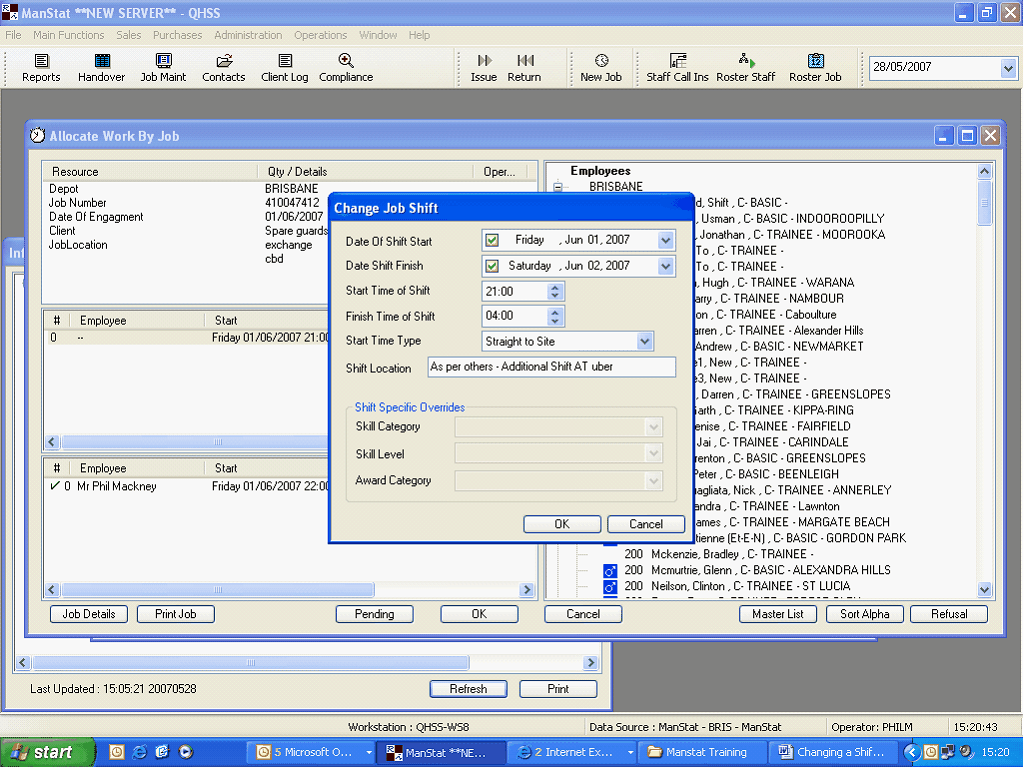
| 1. | "Change Job Shift" should appear |
| 2. | Change times and/or dates as required using the drop down boxes |
| 3. | Ensure that Shift Location and Start time type is input |
| 4. | Click "OK" in the "Change job Shift" window |
| 5. | If no changes have been made to any shift that has a guard allocated then click "OK", if you need to change shifts that have allocated staff this will have to be done separately |