|
Changing Job Details |
  
|
|
Changing Job Details |
|
Find the job using "Job Maintenance" (covered in the Rosters Manual)
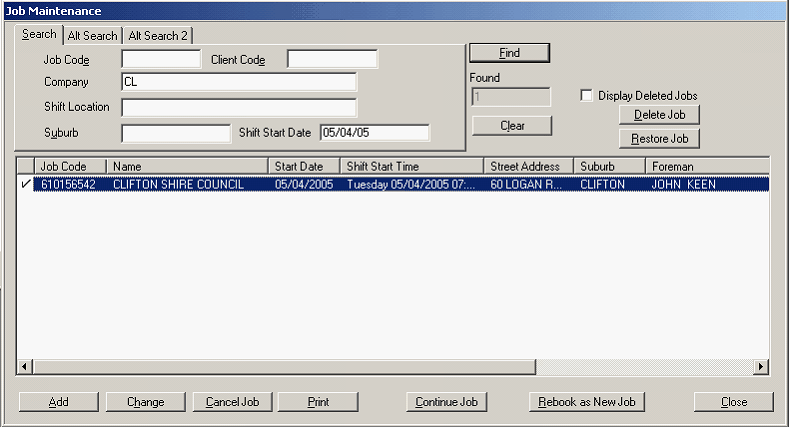
Double click the selected job and the below screen will appear. You will need to make changed to both the "Job Details" screen and the "Shift Creation" screen. Also if you add a vehicle to a job that did not already have one, you will need to add site details in the "Job Information" screen.
Changing Job Location on Existing Job

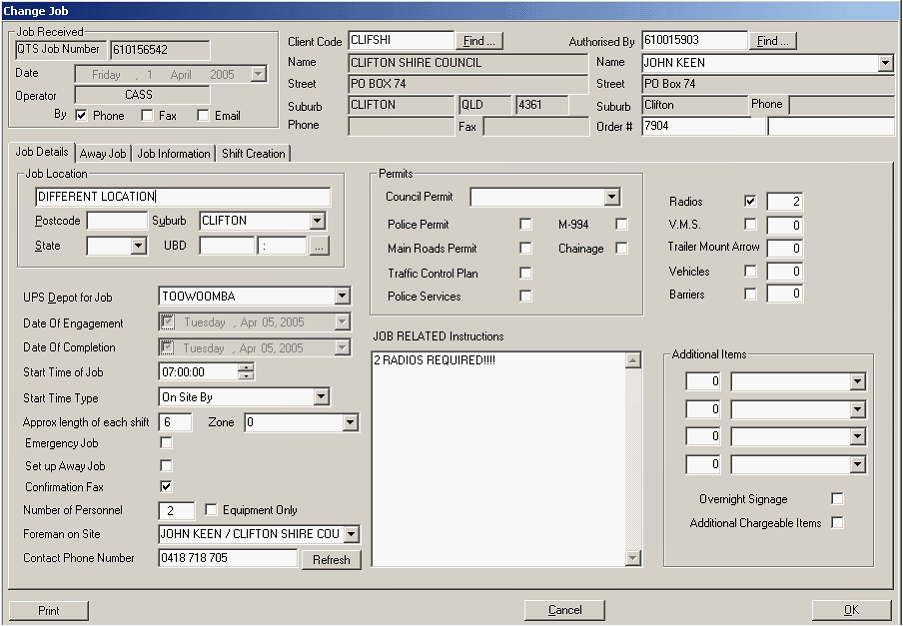
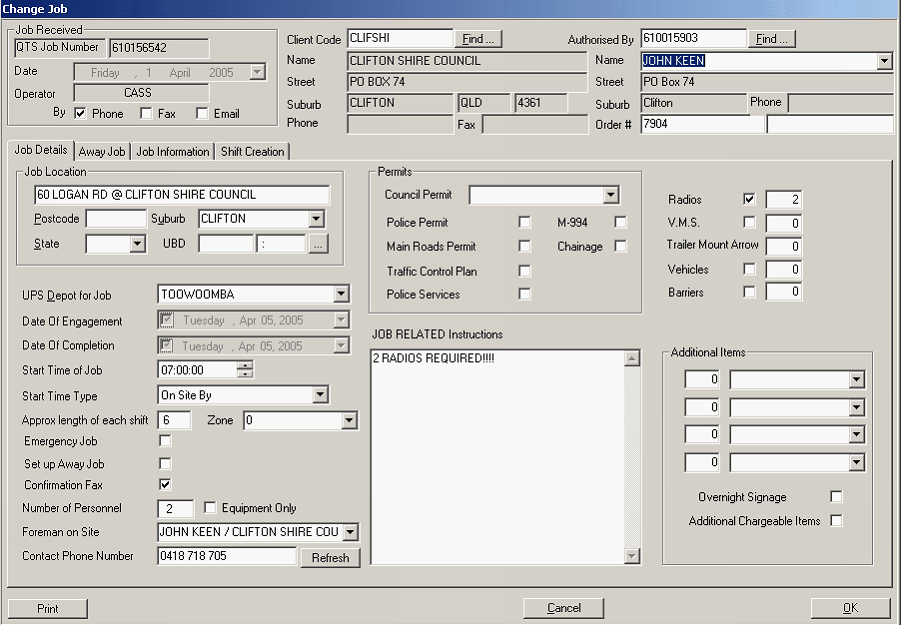
Make the changes to the "Job Location"-check that all other information is correct.
Just note "60 Logan Rd @ Clifton Shire Council" was changed to "Different Location".
Next click the "Shift Creation" tab. To make changes here, you must left-hand click on the job information and click the "Change" button. The screen below will appear.
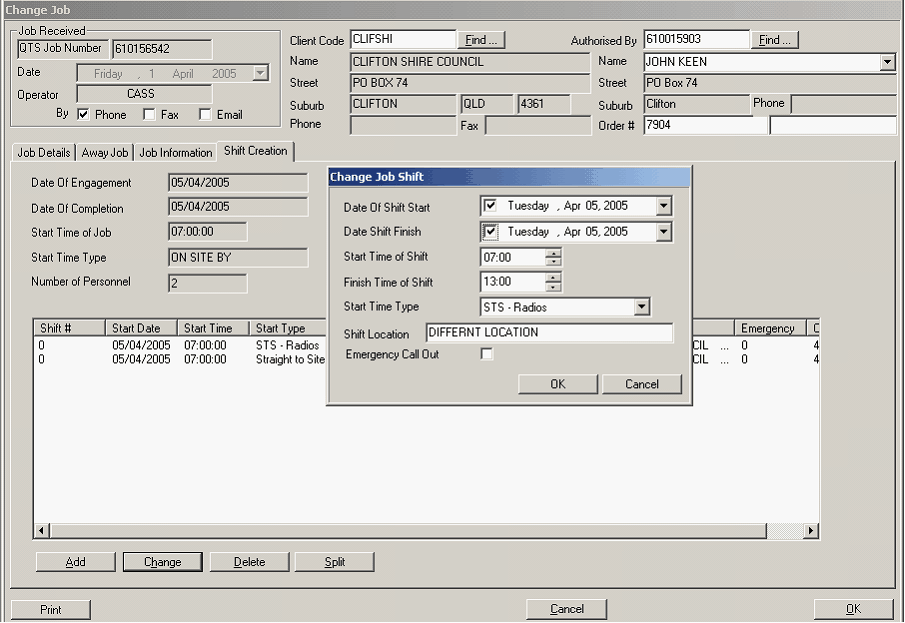
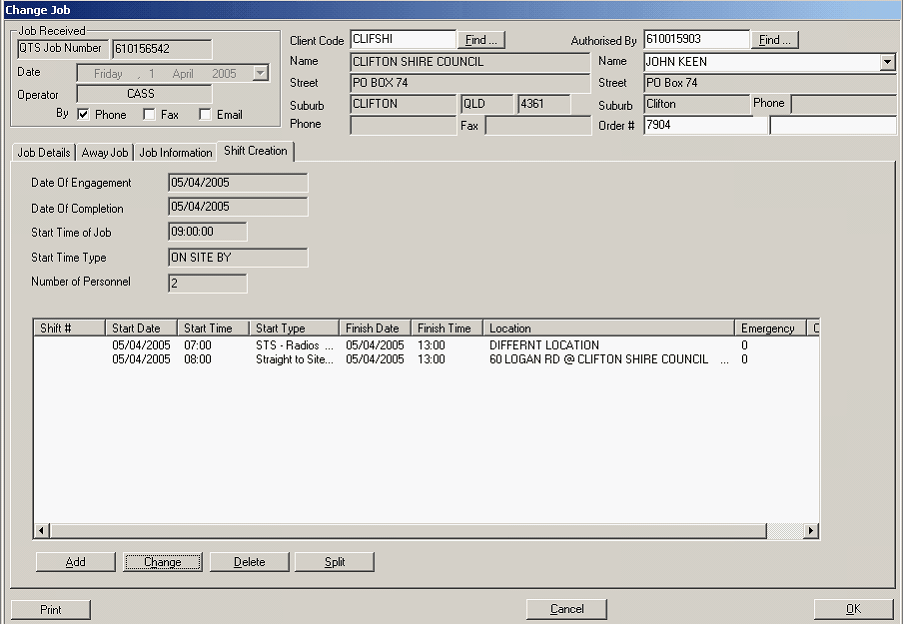
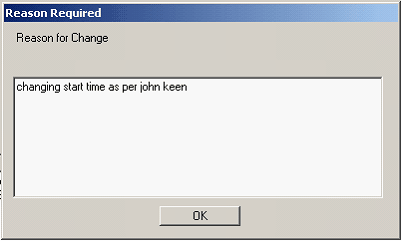
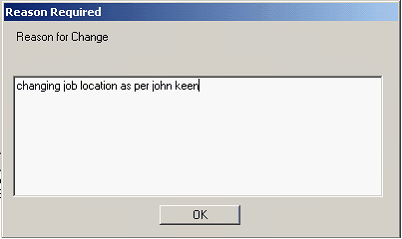
Make your changes and the press the "OK" button. The below screen will appear, to confirm the change you must type the reason for change.
Changing Job Start Time on Existing Job
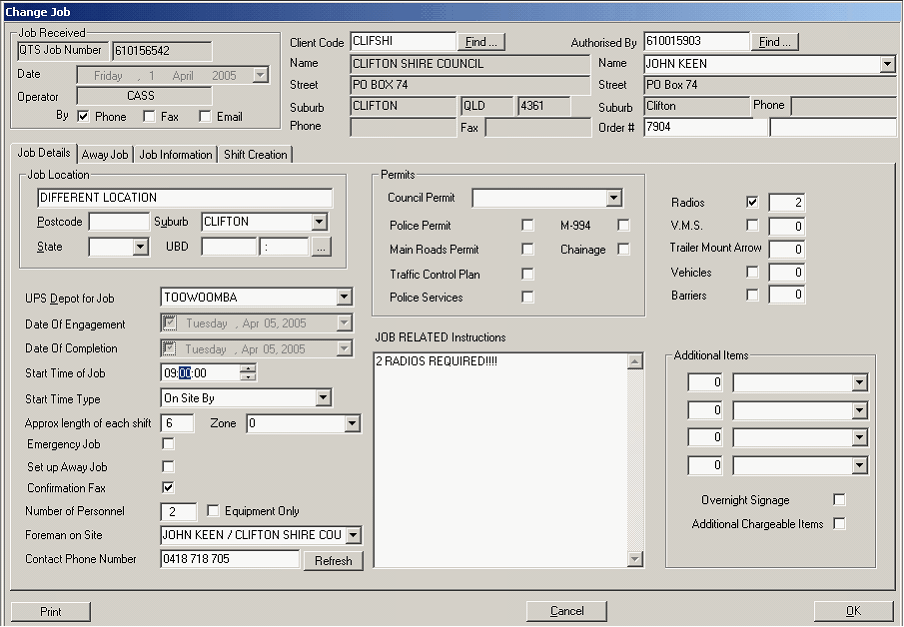
Make the changes to the "Start Time of Job"-check that all other information is correct.
Just note "07:00" was changed to "09:00".
Next click the "Shift Creation" tab. To make changes here, you must left-hand click on the job information and click the "Change" button. When the change screen appears make your changes to the "Start Time".
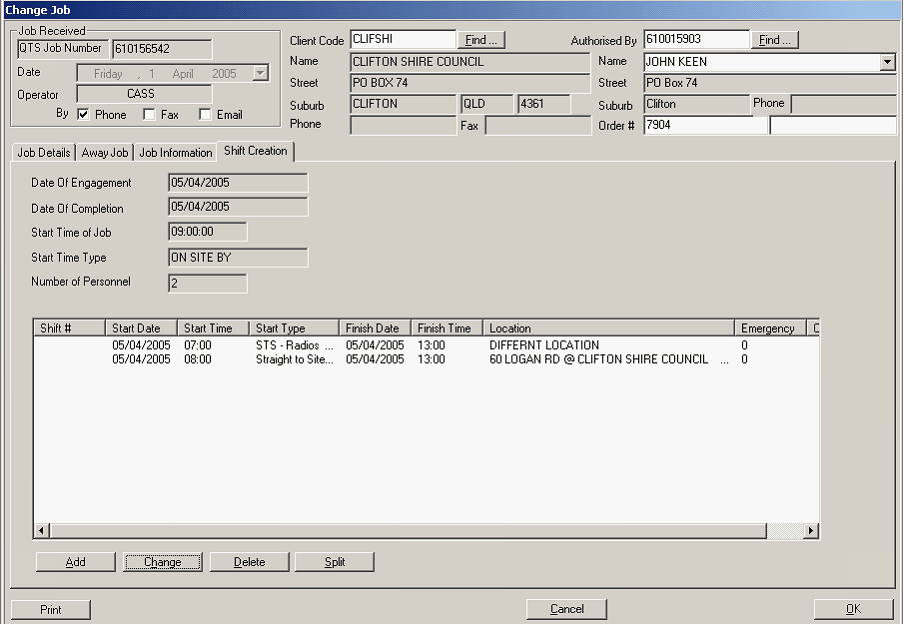
Make your changes and the press the "OK" button. The below screen will appear, to confirm the change you must type the reason for change.