|
Un-rostered Job Maintenance |
  
|
|
Un-rostered Job Maintenance |
|
Left click once on the "Roster Job" icon . The screen below will appear. In the "Shift Start Date" box enter the date in which you are rostering for. Then click on the Alt Search button high-lighted here in the "yellow circle" and enter "South Coast" into the depot box, either by typing it or using the small down arrow next to this field.
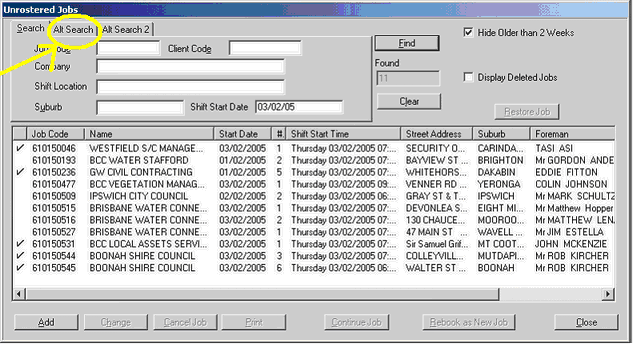
Left hand click on the "Find" button. A list of Un-rostered jobs will appear. Right hand click once on the job to select it and then left hand click once on it.
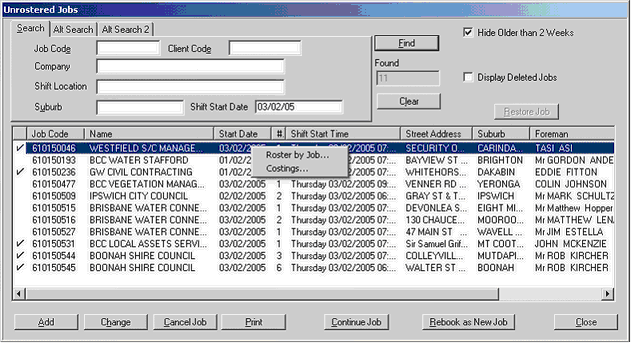
Left hand click on the job that you would like to roster, Right hand click on the high-lighted job, the grey box with "Roster by Job…" & "Costings" will come up. Left-click on "Roster by Job".
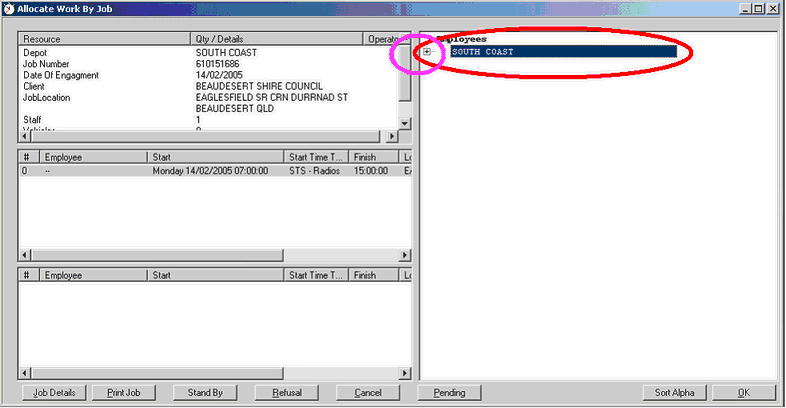
Double click on the depot you need to roster, or just click once on the little +, and the file will expand to show a list of Employees able to be rostered.
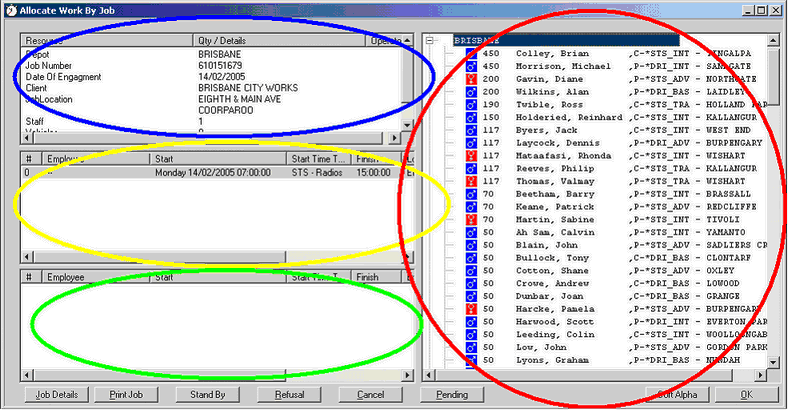
The BLUE circle – this is the job information just briefly.
The YELLOW circle – this displays the number of unfilled shifts and start times.
The GREEN circle – when the shifts appear down in this box it means that a Employee is assigned that specific shift. If there is a red cross or red "P" next to the name it means the Employee is pended to this shift. (see Pending)
The RED circle – Criteria, Criteria Full and Criteria Alpha are 3 lists of possible Employees for the shifts available in the yellow circle. Shown here are the Employees numbers, rank, suburb and score details.
NB: Under the green circle left click the "Job Details" or the "Print Job" to give all the details required to give the Employee.
The Right Employee For The Job
Trainee – to be rostered with a more senior staff member, not to be sent out alone.
Straight To Site – capable of attending straight to site to job sites be themselves or with partners.
Basic – capable of being rostered as the driver of a job that needs signs in a suburban setting ie. single carriage way, low speeds.
Intermediate – capable of being rostered as a driver on a job that needs signs for 2 or more lanes up to 80kmph speed zones.
Advanced – capable of being rostered as a driver on jobs that are in high speed zones with up to 5 lanes of traffic in one direction and can run job with up to 6 staff.
Confirming A Employee To A Job
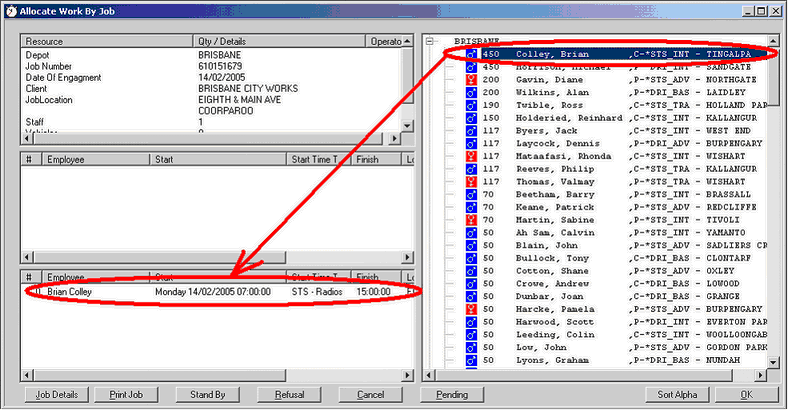
After deciding that a Employee is capable of the shift, right hand click on the name and go to "Properties" to get the phone number, call them. If he/she agrees to do the shift you need to roster them to the shift. It is just a matter of double clicking the Employee's name. A shift will drop into the bottom box along with the Employees name (see the above picture) and left click on the "OK" button. To verify (see "Roster Staff" for details)
NB: When rostering personnel make sure you provide them with all information available about the job – to view the information click on "Print Job" in any of the Rostering processes. The more information you provide the better.
New facility for "Permanent Shift" to allow direct confirmed copy if available through Bulk Job Copy process - this enables confirmed shift copy for selected staff/shifts whilst still allowing confirmation of normal rolled over shifts (Shift Type with lookup table value of 2) also temporary shifts will not be copied during bulk copy (Shift Type with lookup table value of -1)