|
Allocate Work by Employee |
  
|
|
Allocate Work by Employee |
|
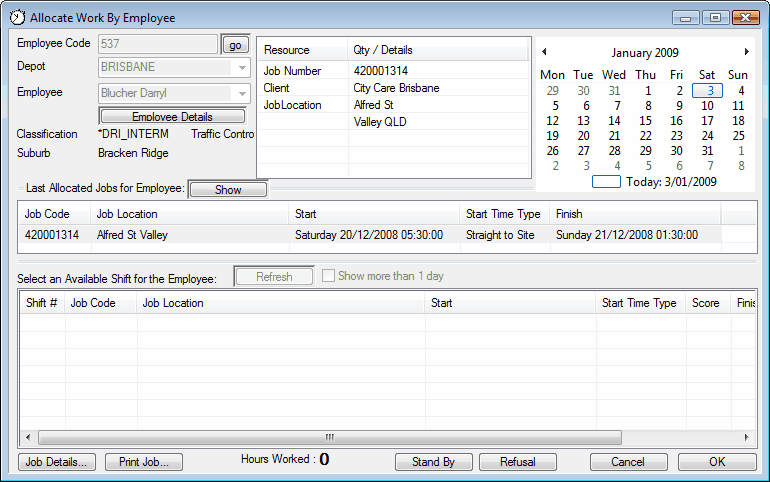
 The following screen will appear after clicking on the "Roster Staff" icon and selecting the desired depot and employees name.

After deciding on the job (and making certain the Employee is capable of it – use the points system as a guide), roster the Employee to the job by double clicking the job. The job will then jump into the top box. Click "Show" to assure that the job has moved or to display previously worked shifts in the last 14 days. Press "OK", and the job will save. To make certain the allocation is saved, run the "Job Shift Summary" Report and see that either the name has appeared in the designated spot to that job or if it was "unconfirmed" that the word "unconfirmed has disappeared. (see Pending)
If no job comes up in the box, you will see the below boxes appear. It may mean that a Employee already has a job – in this case press the "show" button and re-confirm their job details. It may also mean there are no suitable jobs for this particular Employee. In this case make certain you select the "Stand By" button to track the contact from the Employee. This button can be found at the bottom of this screen.
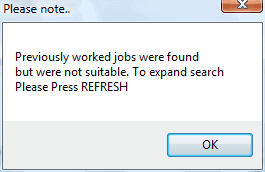 or
or 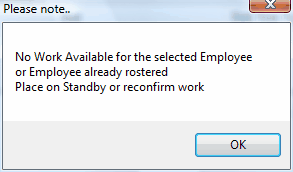
If it is a Friday, or the last day rostering day before a public holiday you will need to tick one of the boxed below circled in blue, then click on the "Refresh" button circled in red. The system will then search for these days. If a Employee has more than one job to confirm, you will have to confirm them separately.