|
Staff Call In's |
  
|
|
Staff Call In's |
|
As the name suggests, "Staff Call In's" are when the Employees rings or is rung and give their docket details, or the docket details are entered straight from a physical docket.
Click once on the "Staff Call In" icon  . The screen below with appear.
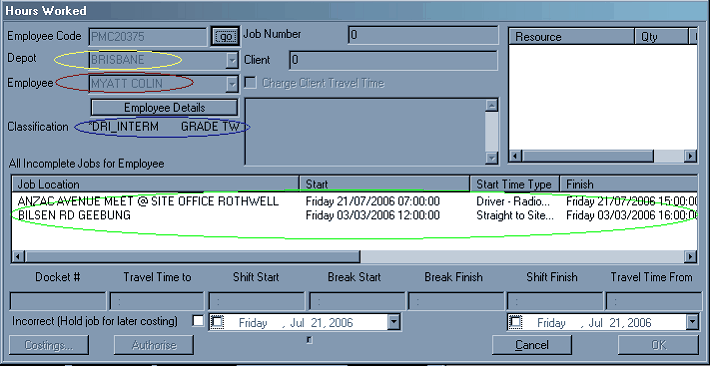
Step 1. The YELLOW circle - enter the depot of the Employee. You can enter the full word (Brisbane) or enter the first couple of letters (Bris) then use the small down arrow to select the desired depot. Even easier, left click once on the small down arrow on the right-hand side of the "Depot" box and hold the mouse over the correct depot. To select the depot, high-light it and left click once.
Step 2. The RED circle - enter the last name of the Employee. You can enter the full last name (Myatt) followed by the first name (Colin) or enter a few letters (Mya) then use the small down arrow at the right hand side of the small box to search for the full name. Even easier, left click once on the small down arrow on the right-hand side of the "Employee" box and hold the mouse over the correct name. To select the name, high-light it and left click once.
The BLUE circle (automatically appears) – this information appears automatically. This will tell you 2 details relating to rostering that particular Employee. Rating, Rank.
The GREEN circle (automatically appears) – the information that appears here will inform you of the job that requires docket details before that Employee can be rostered to any further work.(make certain that the job locations marries up the docket)
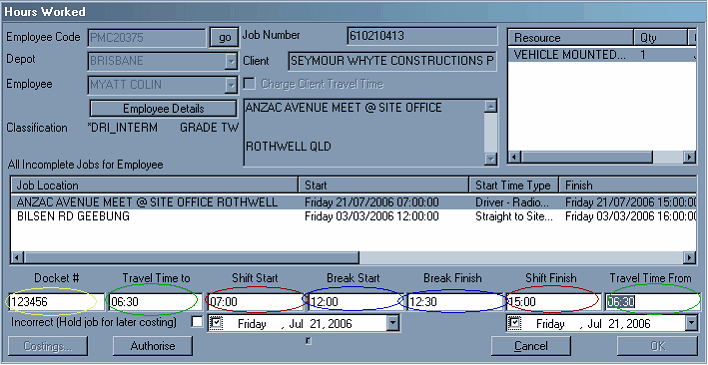
Enter the docket details from left to right.
The YELLOW circle – enter the docket number (the docket number may have 5, 6, 9 digits), it is found in the top right hand corner of the docket – in red.
The GREEN circle – enter "Travel Time Start" & "Travel Time Finish"
The RED circle – enter "Start Shift" time & "Finish Shift" time
The BLUE circle – enter "Start Meal Break" time & "Finish Meal" Break
After all the boxes that can be filled are filled, click the "tab" key until it is possible to press the "No – Roster By Employee" button can be selected. (see Roster Staff)