|
Roster Reports |
  
|
|
Roster Reports |
|
Job Shift Summary
This is the yellow and white striped report that will replace the "Spread Sheet" or "Diary" currently used. Call Centre staff and Operations staff are required to have this report up the duration of their shift.
Scroll down to "Job Shift Summary " report. This report displays all the jobs for the date range. It will show assigned staff to particular jobs and allows you to view pended staff (see Pending).
Open this by either Left Double Clicking on "Job Shift Summary " or Left Click once to select the item, then press "OK".
Here you must enter 3 lots of information
Date 1 - is the date and start time of the period you want to roster from.00:00:00
Date 2 - is the date and end time of the period you want to roster from.23:59:59
Depot - scroll down to select the depot, eg South Coast, using the down arrow, then press "OK". The following report will appear.

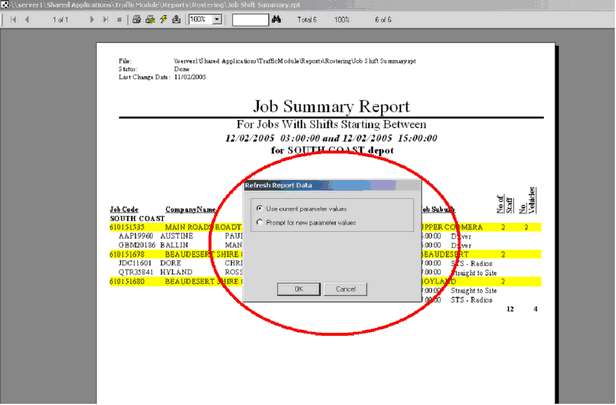
You can refresh your report by pressing the little yellow lightning bolt right at the top of the report . Leave the "Use current parameter values" ticked and press "OK". Bring this report up at the beginning and the end of your shift, it can be left open at all times, however should only be used as a guide.
If you would like to use the same report, however you need to view a different date range, hit the refresh "lightning bolt", and select "Prompt for new parameter values" and then left hand click the "OK" button. Then enter the desired date range and depot as like before.
When you have rostered all of the shifts outstanding, the "Job Shift Summary" report should have Employees' names in the spaces next to jobs.
Other handy Reports include :-
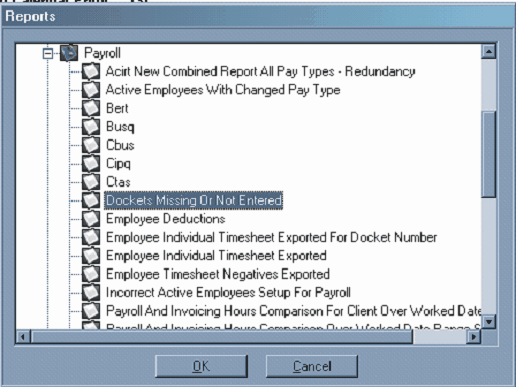
5b Under the "Payroll" file - Dockets Missing Or Not Entered – this report will show you what dockets are outstanding each week. This report is to be watched daily.
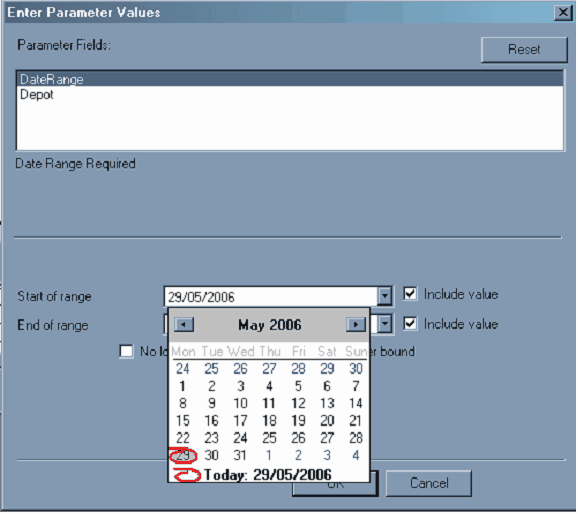
Bring up the report to show the last "pay week" (Monday to Sunday just gone), eg. The 22nd to the 28th (as below).
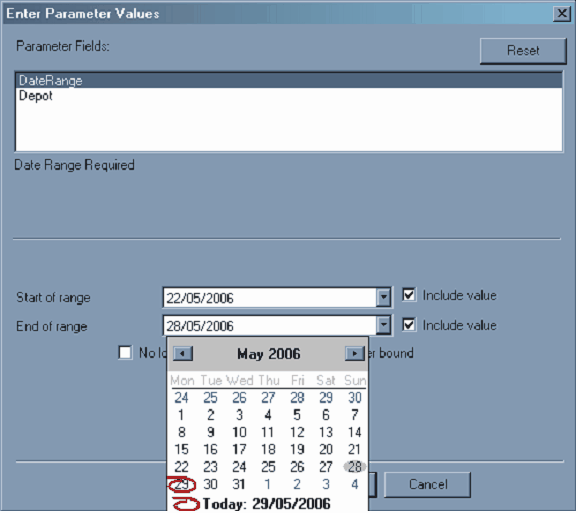
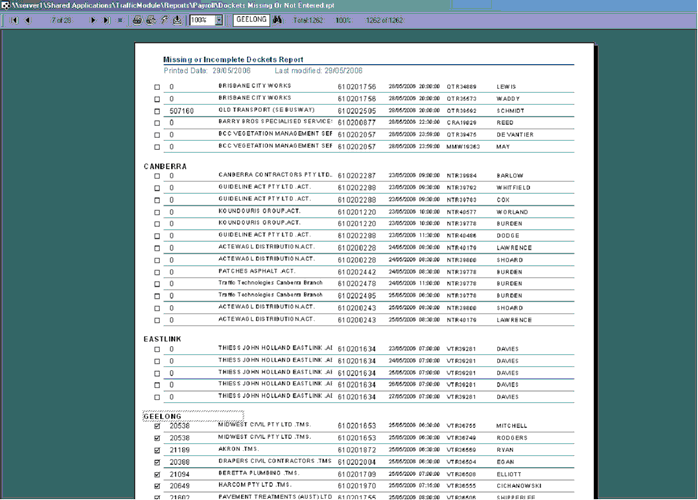
The report will look similar to the below.
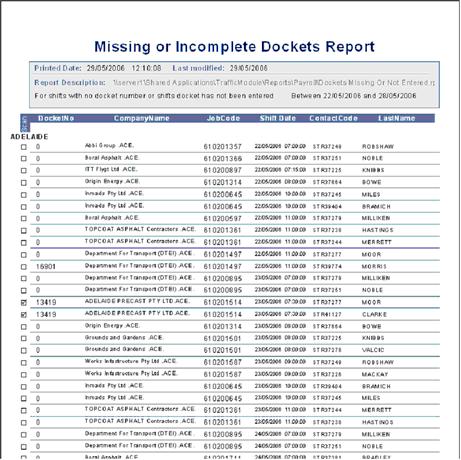
5c . Legend For "Missing or Incorrect Docket" Report
123456 - docket details entered, not verified
0- docket details not entered
 - docket been scanned (no tick – not scanned )
When all dockets are completed – there will be none on this list, this means all of the dockets are entered, verified. ( see "ManStat Flow Chart")
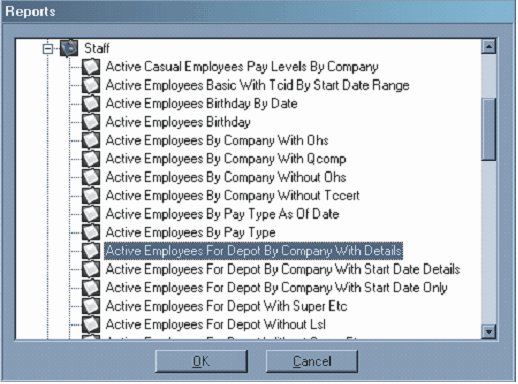
5d .Under the "Staff" file – Active Employees For Depot By Company With Details – gives you a list of all active staff members in each depot. (Fill fields as prompted).
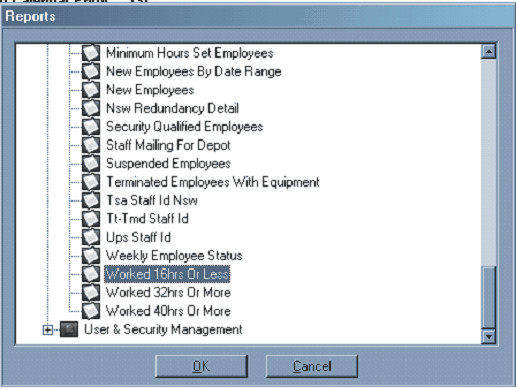
5e,f,g. Under "Staff" – Worked 16 hours Or Less – gives you lists of employees who have not worked above 16 hours. Similarly 32hrs or More & 40hrs or More (found under Staff also). (Fill fields as prompted).

5h. Under "Invoicing" – Invoice Run With Dockets By Invoice Date – For Region - prints the invoices out to send to the clients for payment of traffic management we have supplied for them.
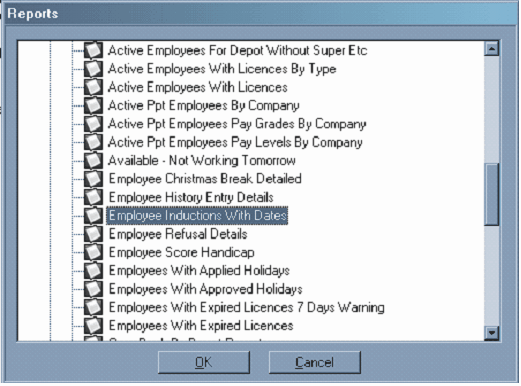
5i. Under "Staff" – Employee Inductions With Details – gives you a list of all inductions and the staff members that are inducted to each.
6. Circled in green below is the reports task bar. As you can see this report has only one (1) page. Other reports will be multiple pages, in this case you can use the arrows to go back and forward in the report. The plain arrows will go one page at a time, the arrows with lines will go straight to the last page or straight back to the first page.
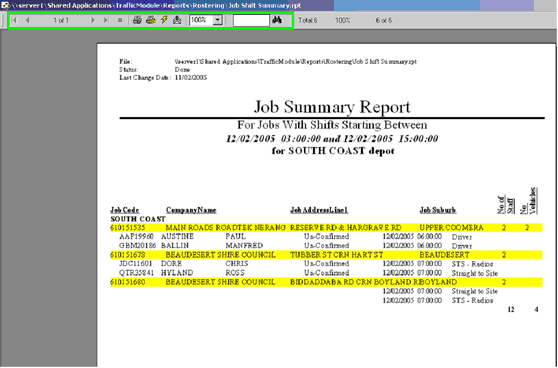

In the box next to the binoculars, type a word or a few letters that you are searching for, and just click on the binoculars. In the example above "GEELONG" has been entered. See below – the word GEELONG is circled in the report. You can search names of staff, locations etc.