|
Printing Job Sheets |
  
|
|
Printing Job Sheets |
|
Everyday the different Depots Job sheets need to be printed; these are only the jobs that require a vehicle. This is so when the Driver of that job goes to the depot to pick up his/her allocated ute, they can take a copy of the job sheet with them and see all the "Job Related Instructions" first hand. This helps with the correct signage going to the job site.
*In the afternoon – print out that night's work with date range 16:00->04:00
*In the evening – print out the next days jobs with date range 00:00 -> 14:00
As like the other reports (see "Create A Report"); left-hand click on the "Reports" icon. The below screen will appear.
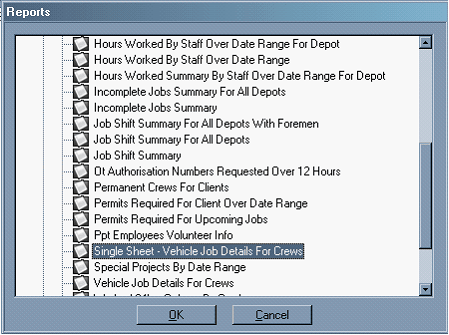
This is for 1 sheet only (if you do not have triplicate paper)
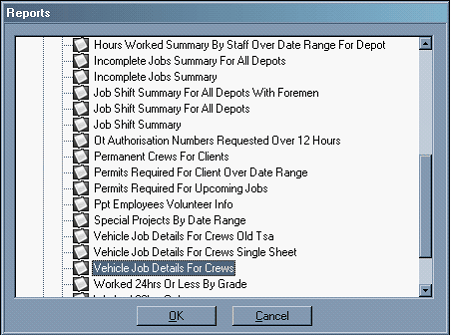
This is the 3 job sheet when you have the triplicate paper that can be used as a docket.
From here select the report called "Vehicle Job Details For Crews"
Enter the dates for "Date 1" and "Date 2" with their respective times as stated above in red.
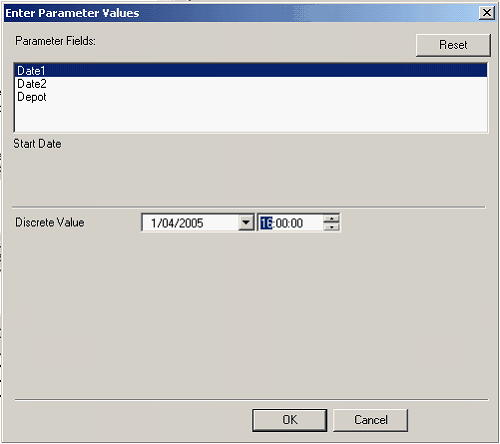

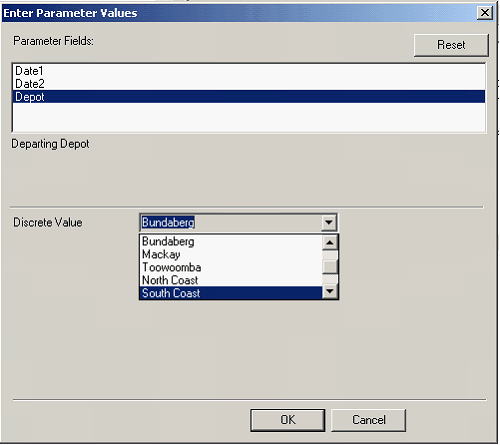
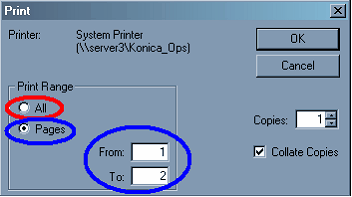
Enter the "Depot" and press the "OK" button. Multiple job sheets will come up. Use the Printer icon up the top of the sheets (circled in red) to print them. Do this for each depot.


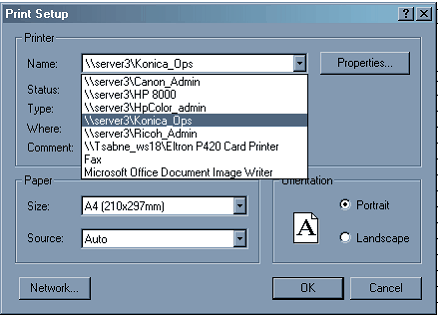
Choosing a Printer