|
Changing an Invoice |
  
|
|
Changing an Invoice |
|
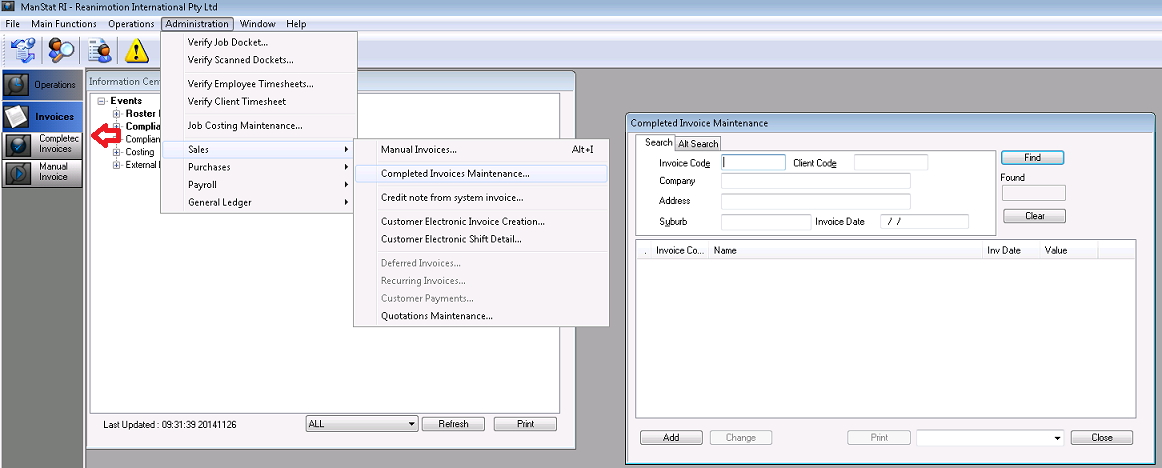
1. If you want to change an invoice before sending out to the client, go to Administration, Sales, Completed Invoice Maintenance and the below screen will appear. Alternately you can click on Invoices and Completed Invoice Maintenance on the left hand side.
2. Find the invoice using the preferred criteria. An invoice with a green coloured C on the left of it indicates that that invoice has been exported to accounts and cannot be changed.
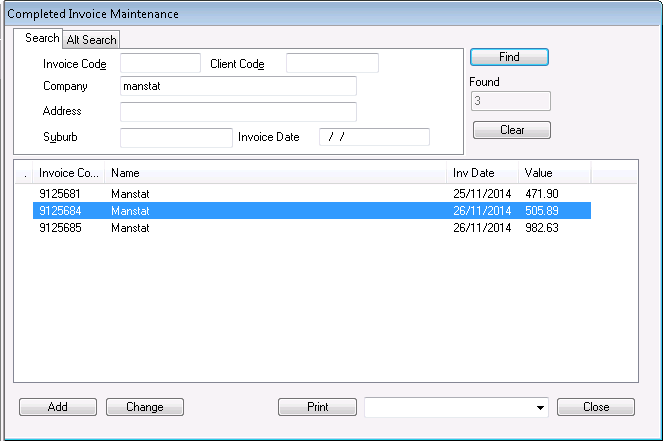
3. Highlight the invoice you would like to amend and click Change.The following screen will appear

4. Enter the Product Code on the line you wish to change and press Save.
***Note: At this point, it is handy to have the Product Code Matrix report open so as to know what the codes are for specific charges. Go to File, Print Reports, Master Setup, Invoicing Product Code Setup Matrix.
To insert a line in the invoice, press Control, Insert on your keyboard or to remove a line, press Control, Delete
To copy descriptions of one line to another, copy by pressing Control, C on your keyboard and for pasting press Control, V
***Note: Any changes made on this screen are considered live by ManStat and cannot be undone
5. By pressing the << Back button on the bottom left of the Customer Invoice Screen; it will take you to the linked job for this invoice
6. By highlighting the job and right clicking it, it is possible to Add, Remove or Print the job
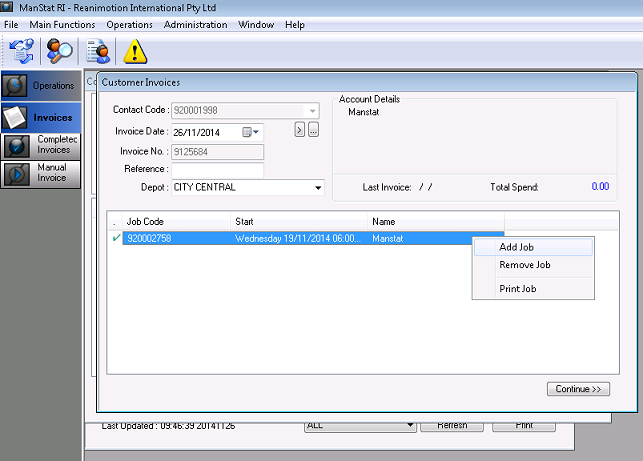
***Note: Invoices require a linked job for reporting purposes however an invoice will still generate if not linked to a job but this is not recommended.