|
Black Listing Staff |
  
|
|
Black Listing Staff |
|
| 1. | Select Venue by clicking "Contacts" tab |
| 2. | Enter venue name in "Company" and click "Find", see below |
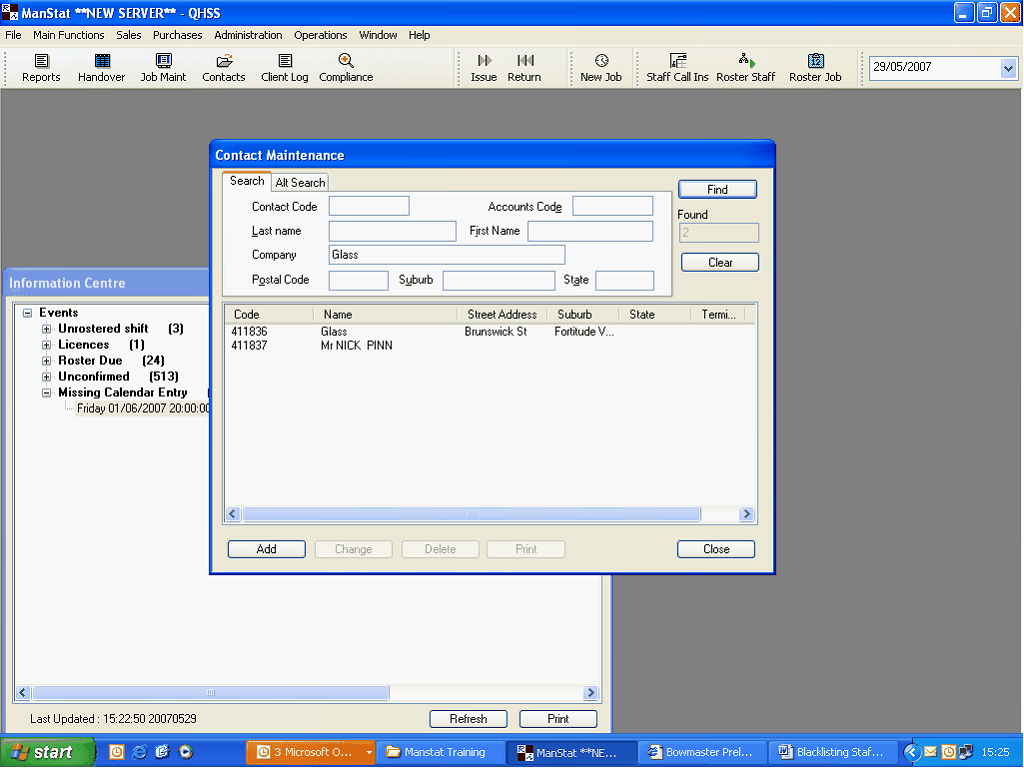
| 3. | A list of clients and venues should appear in the bottom section of the window as above |
| 4. | double Click Venue you desire, the "Change Contact" window should appear |
| 5. | Select "Blacklist" tab on bottom menu of "Change Contact" window, the following window should appear |
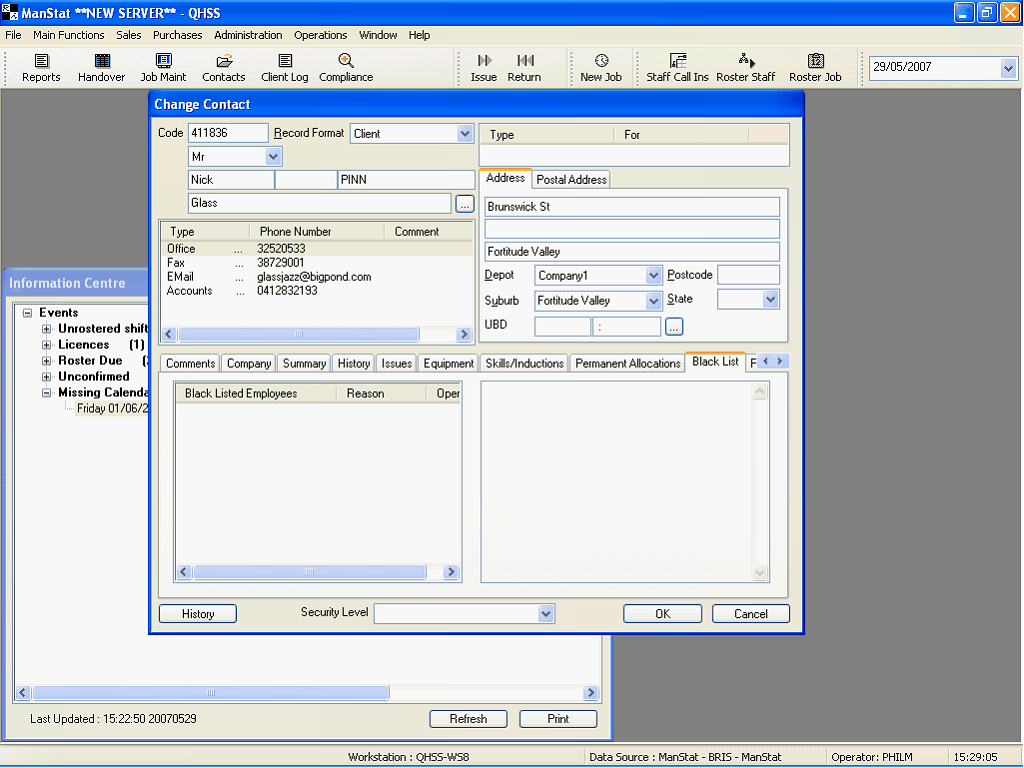
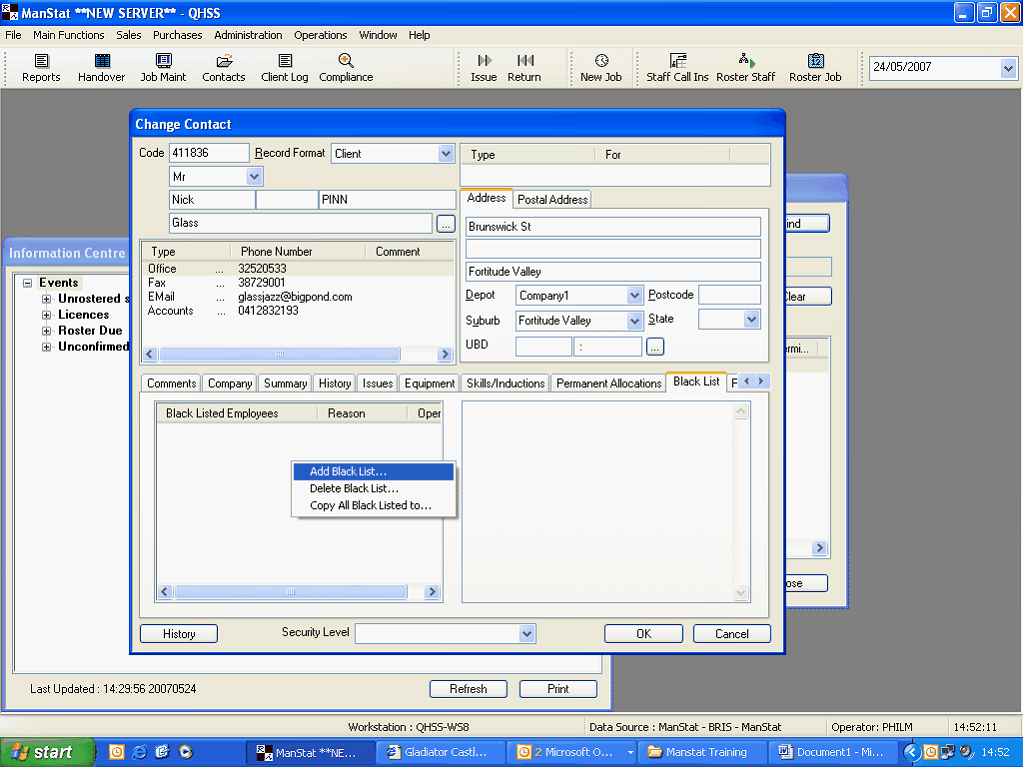
| 6. | Right click in "Black listed Employees" blank space located at the bottom left of the window |
| 7. | three options should appear as below |
| 8. | Select "Add Blacklist" |
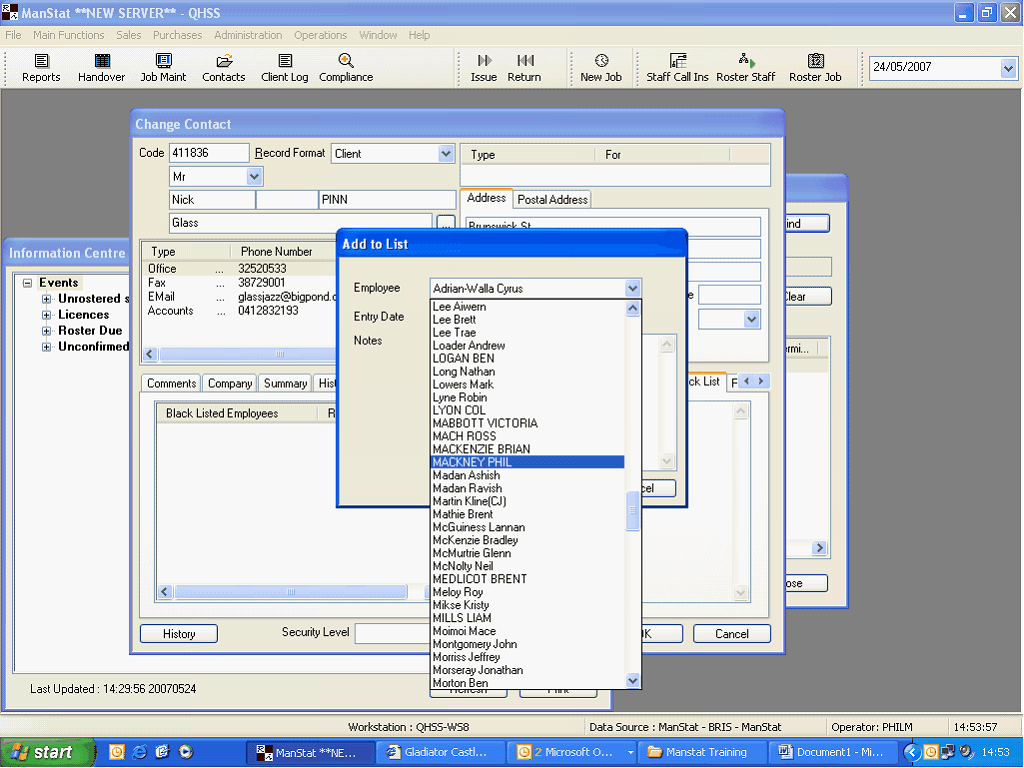
| 1. | Select "Employee" drop down box in the "Add to List" window which has appeared |
| 2. | Select "Entry Date" from drop down Calendar |
| 3. | Add notes as to the reason why they are blacklisted, these must include; |
| a. | Who blacklisted the staff member |
| b. | Why they were blacklisted |
| c. | What was the result of the counselling session relating to the blacklisting |
| 4. | Click "OK" in the "Add to List" window |
| 5. | Click "OK" on bottom of "Change Contact" window |