|
Adding an Issue to Contacts |
  
|
|
Adding an Issue to Contacts |
|

1.Click "Contacts" on top Icon bar, "Contact Maintenance" window will appear
2.Using the prompts search for the name you are searching by either inputting "Last Name" or "First Name" or part there of
3.Click "Find"
4.Double click the name you are searching for
5.If the name you are searching does not appear check spelling of the name or reduce the spelling to the first letter only
6."Change Contact" Window will appear
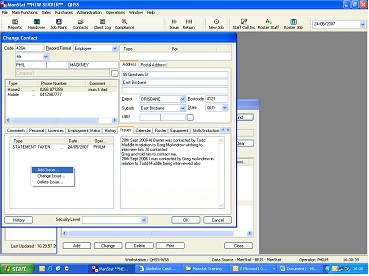
1.Click on "Issue" tab located in the middle of the window
2.Right click "Type" blank space area at the bottom left of the window
3.Three options will appear
4.Select "Add Issue"
5."Add Contact List Item" will appear as below
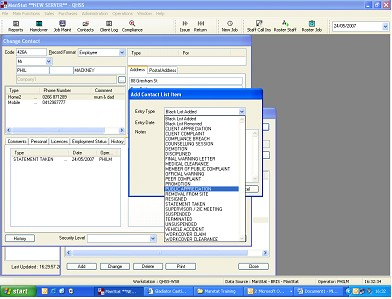
1.Click the drop down box to input "Entry Type" Select type of issue
a.N.B. Many options will appear in the drop down list, chose the most relevant to input the information you receive
2.Select Date using the drop down box for the "Entry Date"
3.Add Notes to describe issue and who reported it
a. Notes might include:
i. Issue From – (Insert Name) [enter]
ii. Details of Issue – (Details) [Enter]
iii. Spoke to – (Managers Name) [Enter]
iv. Date – (Date) [OK]
4.Once this is done click "OK" in Change Contact Window
5."Close" in "Contact Maintenance" window