|
Adding Changing or Deleting a shift |
  
|
|
Adding Changing or Deleting a shift |
|
1. Follow Adding a Job to find the desired Job
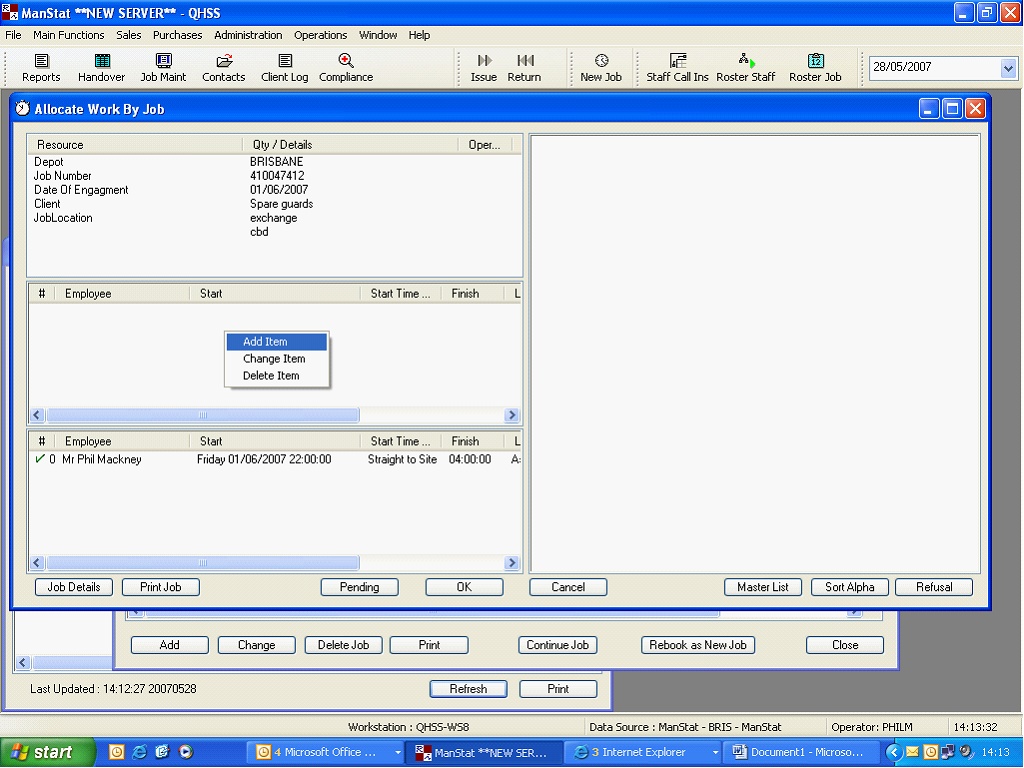
2. "Allocate Work By Job" should be shown
3. Right Click space in middle of window as shown
4. (If deleting a shift only delete a shift if there is no one allocated to the shift, if someone is allocated to the shift, un-roster them to do so)
5. Make a selection from the three options. The next screens will appear
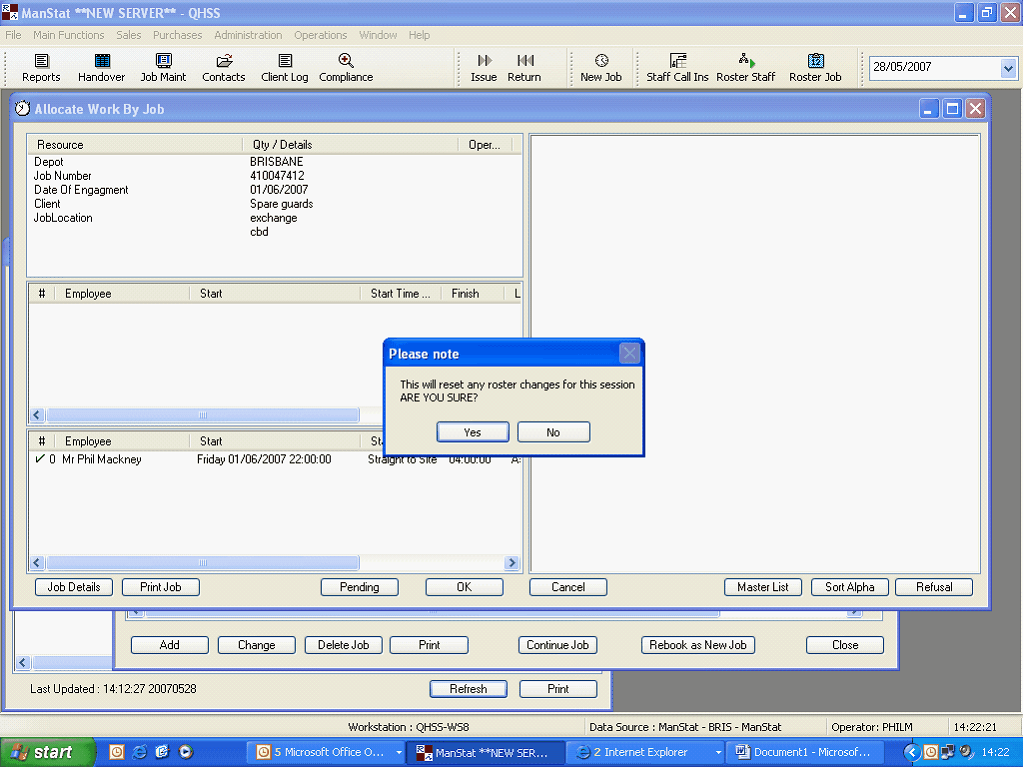
6. Click "Yes" in the "Please note" Window
7. "Add Job Shift" should appear, see below
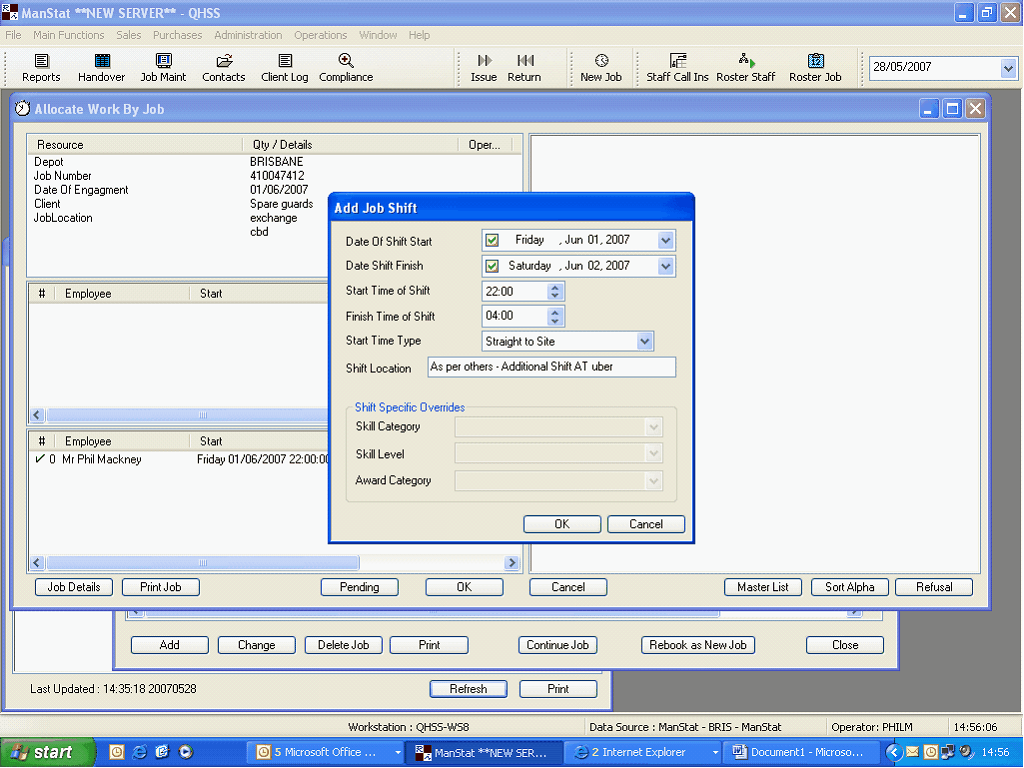
1. Input Shift start date using "Date Of Shift Start" drop down box
2. Input Shift Finish date using "Date Shift Finish"
3. Input start and finish times for shift
4. Input Shift location if applicable i.e. "Back Door" or if ghost rostered note venue of ghost shift
5. Click "OK"
6. Then roster a staff member to the shift, see "Allocating a Staff Member to a Job" lesson