|
Adding a Job |
  
|
|
Adding a Job |
|
FIRSTLY ASK YOURSELF or the CLIENT: "Is this a continuation or a new job?"
Continuation Job (see How to book a Continuation Job)
New Job (see below)
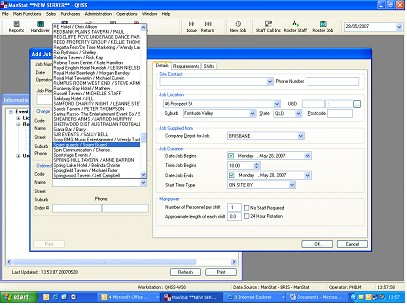
1.Select "New Job" icon on top menu bar
2.Select "Job Placed By" and tick located in the upper left section of the "Add Job" window
3.Use the drop down box located in the bottom left "Ordered By" section to select which Client the job is located at
NB: Always ask for an "Order number". Some clients refuse to pay for their work in no "Order Number" is provided with the invoice.
4.Repeat this in the top right section of the window, in "Site Contact" as shown below
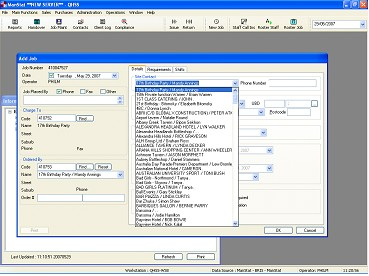
5.Input Job Location
6.Select "Job Supplied from", this is again a drop down box which has selection allocating the job to a particular region
7.Input information into "Job Duration", each selection in this area is drop down boxes. See Below
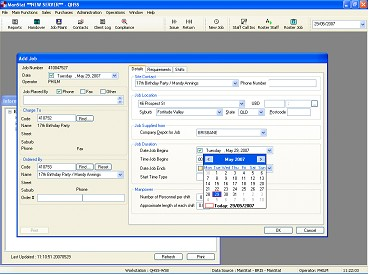
8.Input number of personnel and length of longest shift duration into "Manpower"
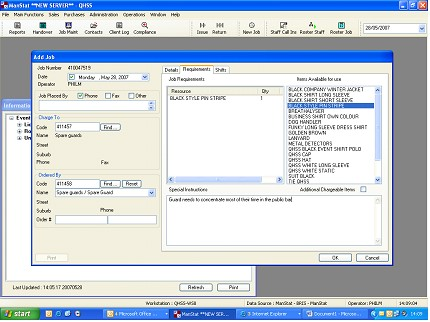
1.Click "Requirements" tab located at the top right of the "Add Job" window
2.Select items required for the job from the "Items Available for use" list, multiple items can be selected, once they have been selected they will appear in the Resource list as above
3.Input "Special Instructions", see above
4.When complete Click "Shifts" Tab at the top of the window, the designated shifts will appear as below
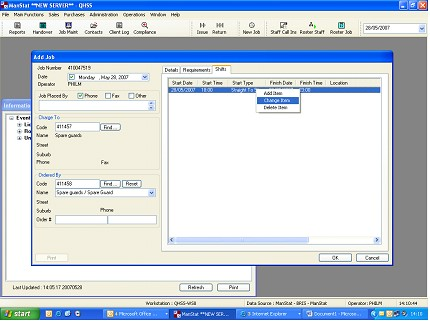
1.Check the Shift information is correct
2.Add, Change or Delete any shifts by right clicking the space or over the selected shift
a. Make a selection and make changes as required (See Adding, Changing or Deleting a Shift, for further instructions)
3.Once correct click "OK", you should now see the information Centre only