|
Products |
  
|
|
Products |
|
The Product Maintenance function allows you to create a new product, or change or delete the records of an existing product.
If you are creating a new product or changing or deleting an existing product, simply select Product from the Setup menu, and then select Product Maintenance. This will reveal the Product Maintenance screen. To create a new product, simply click on the Add button located at the bottom left of this screen. This will reveal the Add Product screen, which can be used to record all the details of the new product. For more information on this function, please refer to the Help chapter entitled "Creating a New Product".
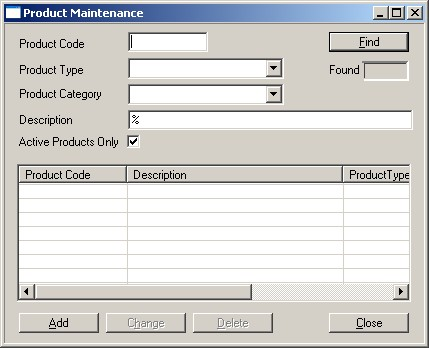
To identify an existing product that requires changing or deleting, simply enter one or more search criteria (for example a Product Code or a Product Type). Once the search details have been entered, simply click on the Find button (or press the Enter key on your keyboard).
If more than one hundred products meet the search criteria entered, ManStat will ask you to further refine the search criteria. If there is less than one hundred matching products, they will be listed in numerical and alphabetical sequence in the list view field at the bottom of the Product Maintenance screen. Simply scroll down and select the product you want to change or delete. The total number of matching entries found will be displayed in the Found display box.
It is not necessary to know the complete details to find an existing product. Simply enter a Wildcard in place of the unknown characters when entering the search criteria. For more information on Wildcards, please refer to the Help chapter entitled "Wildcards".
If you wish to delete the selected entry, simply click on the Delete button located at the bottom of the Product Maintenance screen. This will reveal the Delete Product screen. Check all the information displayed to ensure this product can be deleted from ManStat, and then click on the Delete button located at the bottom of the Delete Product screen (or press Enter on your keyboard.) If you do not wish to delete this particular product, click on the Cancel button to return to the Product Maintenance screen.
Please note that if this product is referenced elsewhere within ManStat, you will not be able to delete it. Such referencing could include being listed in a current transaction.
If you wish to change the details for the selected product, simply click on the Change button located at the bottom of the Product Maintenance screen. This will reveal the Change Product screen.
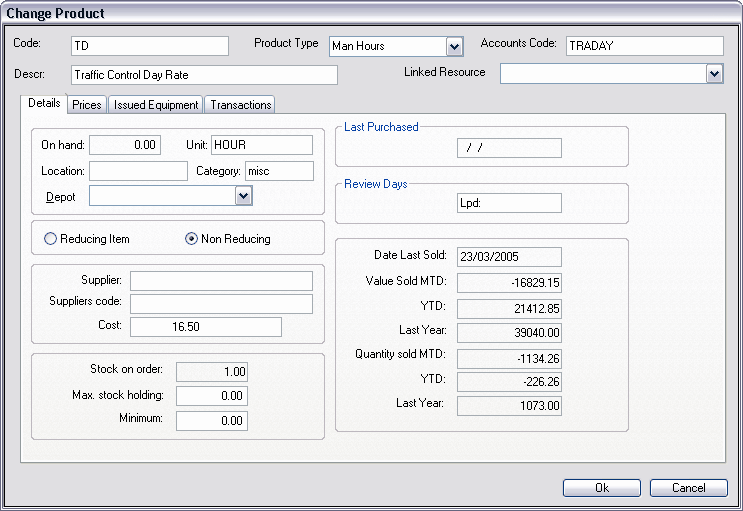
This screen allows you to view and update all the details of this product. At the top of the screen the Product Code and the Product Type are automatically displayed. Below these fields is a brief description of the product and the product category.
The Description field for this product can be edited by simply clicking inside the display field, and then typing the new description over the existing one. The Product Category field can be changed by selecting the appropriate category from the associated drop down list. In order to best suit the particular needs of your organisation, ManStat allows you to edit the product categories contained in this drop down list. For more information on how to edit these categories, please refer to the Help chapter entitled "Product Category Maintenance".
If this product is currently active, simply click on the check box entitled Active. If this check box is not ticked, ManStat will not allow you to accept any transactions for this product.
The Change Product screen contains many tabs, each displaying different types of information about this product. Most of this information can be edited by you, however some of the information is automatically updated by ManStat, and therefore many of the fields displayed are read only fields.
The types of tabs that are displayed will be different for each Product Type. For an explanation of each tab, please refer to the Help chapter entitled "Product Tabs".Once you have made the required changes to all the fields contained in the Change Product screen and its tabs, simply click on the OK button located at the bottom of the screen. ManStat will then return you to the Product Maintenance screen. If you do not wish to continue with these changes, simply click on the Cancel button located at the bottom of the Change Product screen.