|
Adding a New Client |
  
|
|
Adding a New Client |
|
1.Go to Main Functions, Contact Maintenance or alternately, click on Contact Maintenance shortcut  and the following box will appear
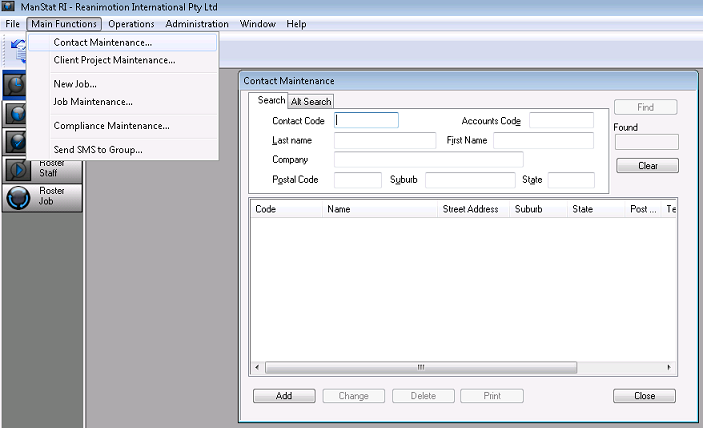
2. Select Add at the bottom of the Contact Maintenance window and the Add Contact window will appear (as shown below)
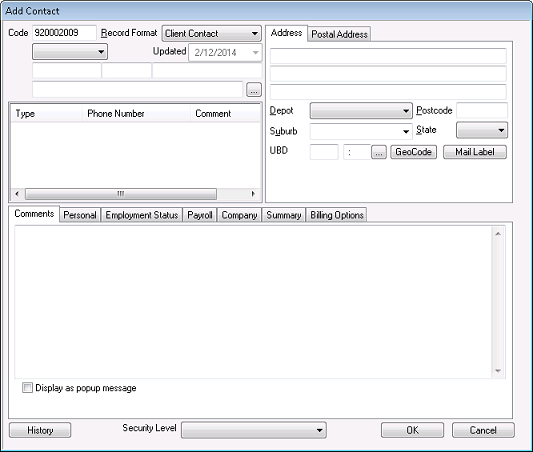
3. The Record Format will default to Client Contact. Change the Record Format to Client from the drop down menu.
Here, the Record Format can be changed to Client (Project Parent) unless it is a Project for an existing client, in which case the name of the company is entered into the First Name space and it is then connected or married to the Client (Project Client).
4. Enter in all relevant contact details i.e. Company name (ABC Corp.), Contact Numbers and Addresses.
*** Note: If you have two or more companies of the same name in ManStat but different divisions, adding an asterisk * after the actual company name and then adding additional identifying text after the * can be seen by ManStat users but this added text will not show up on an invoice. (For example – ABC Corp*Profiling. The text after the asterix will not show up on an invoice.) This does require the invoice templates to be setup correctly when implementing the system.
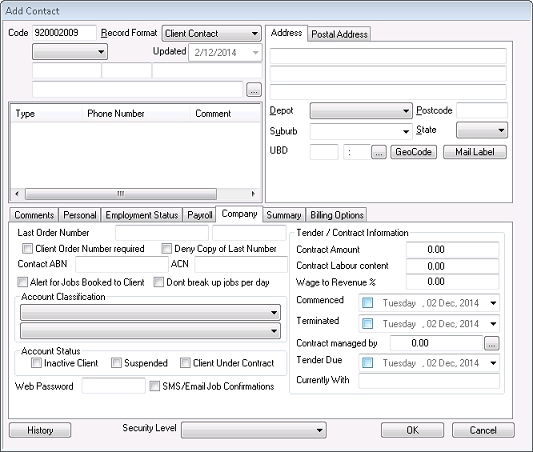
5. Go to the Company tab (as seen below) and enter any relevant information needed here about the company i.e. ABN and whether a client order number is required when booking jobs.
6. Go the Summary tab and enter the Price Level for this particular company and the accounts code for the company.
***Note: It is important this code matches your accounting system for invoice exports

7. In the Billing Options tab seen below, the default depot needs to be changed to required depot.
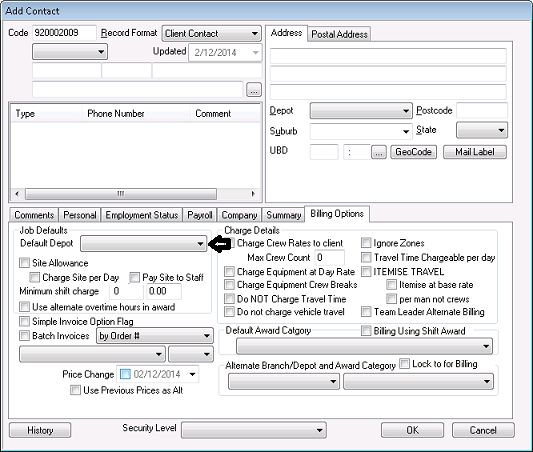
8. Enter a Minimum Shift Charge to setup minimum billing hours for the client.
9. The Batched Invoices check box allows multiple shifts to print on one invoice.
*** Note: Batch Invoices will combine all jobs for this client either by:
the same Authoriser into one invoice
jobs for the period into one invoice
the same docket number into one invoice
the same Employee number into one invoice
the same Location number into one invoice
the same order number into one invoice
the same order number and Authoriser into one invoice
the same Project number into one invoice
the same shift date into one invoice
the same Site Contact into one invoice
10. In the Charge Details section of Billing Options, the Charge Crew Rates to Client box needs to be checked if you charge men and vehicles. If they are charged separately, do not tick.
11. Max Crew Count, unless otherwise specified will default to 2.
12. The Default Award Category should always be “Primary Award (Company Name)”
13. Press OK.
14. Go to Contact Maintenance and search for the client to ensure it is saved correctly.
*** Note: If unsure of what needs to be checked or selected, choose an existing client to make sure the new client has been entered correctly. Incorrectly entered clients will cause issues with invoicing.
*** In addition, you can choose what level ManStat user can view this particular contact by clicking on the Security Level drop down field located at the bottom of a contact.