|
How to Edit the Site Checklist in the Tablet Docket Application |
  
|
|
How to Edit the Site Checklist in the Tablet Docket Application |
|
In Manstat, go to File, System Setup, Docket App v1 Configuration. The following screen will appear:
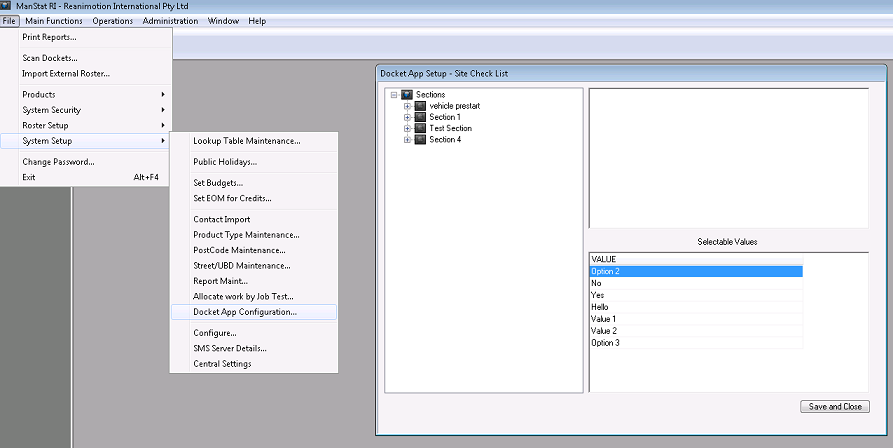
Working from first to last and building each item in order will enter the items in order in the tablet docket (left hand side of the set up screen).
| 1. | Highlight and right click on Sections to add a new section. |
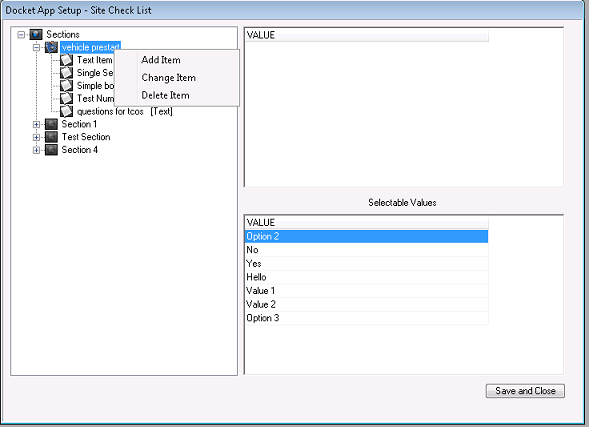
| 2. | Name the section i.e. Vehicle and press Save. |
| 3. | Now highlight “Vehicle” and then right click to add an item. |
| 4. | Name the item i.e. Odometer Start and select what kind of value required for this item i.e. Numeric. Press Save |
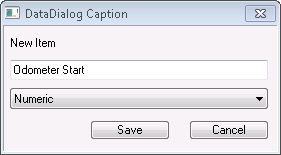
| 5. | If the Type selected is Text or Numeric return to step 3 for the next item or step 1 for a new section. |
| 6. | If the Type selected is Boolean or Single_select or Multi_select then predefined selectable values must be linked to the item |
| 7. | If the predefined values you need already exist go to step 10 |
| 8. | Now click in the Selectable Values box (bottom right hand corner) and select Ctrl-Insert on your keyboard to add a new line. The following text box will appear: |
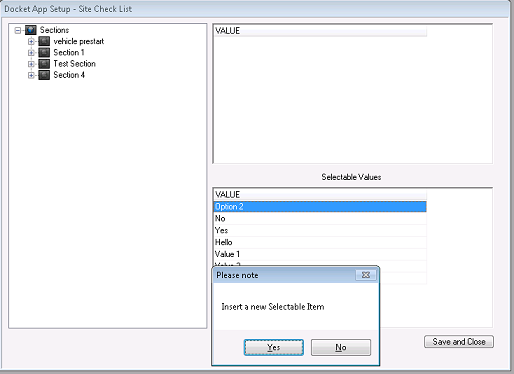
| 9. | Select Yes. |
| 10. | Type in the values required i.e. True, False etc. |
| 11. | Go to the Sections, highlight the selectable value you would like to link then click in the top VALUE box with the mouse. |
| 12. | Ctrl-Insert will then prompt to link the selected item with the selected value option. |
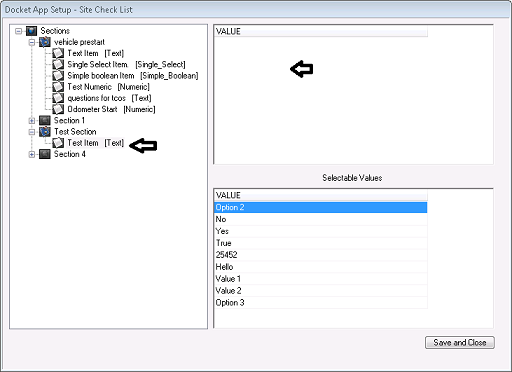
| 13. | Press OK. |
| 14. | Return to step 10 for more values or step 3 for the next item or step 1 for a new section. |
***Note: For Numerical & Text items, no values need to be linked as these two types present a keyboard for data entry on site.
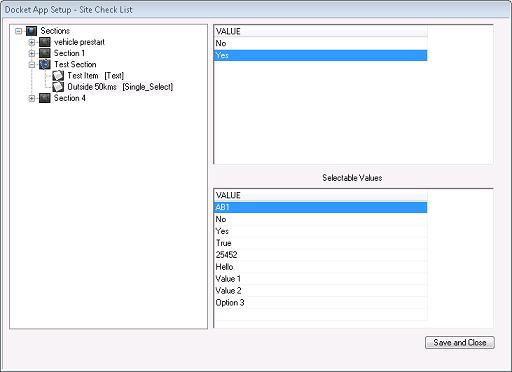
To recap - linked values are created (top right hand corner of screen) as per the screen shot below,
Highlight the Item on the left of the screen, then click on the value required from the Selectable Values box (bottom right) and then click on the Value box above and press Ctrl-Insert to add. Follow the prompts.
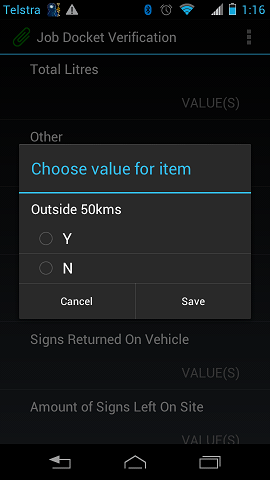
Screen shot as it appears on android application as per the above set up:
To delete an item or value, highlight the required item/value and press Ctrl-Delete on your keyboard.
Value Types
Mult Select – multiple choices from multiple options
Numeric – empty field to add numbers only
Simple Boolean – one option to choose out of two only
Single Select – one choice only from multiple options
Text – empty field for alpha-numeric entries