|
How to use Tablet Dockets |
  
|
|
How to use Tablet Dockets |
|
Installation on a suitable tablet:
1. Open the internet browser and go to www.manstat.com.
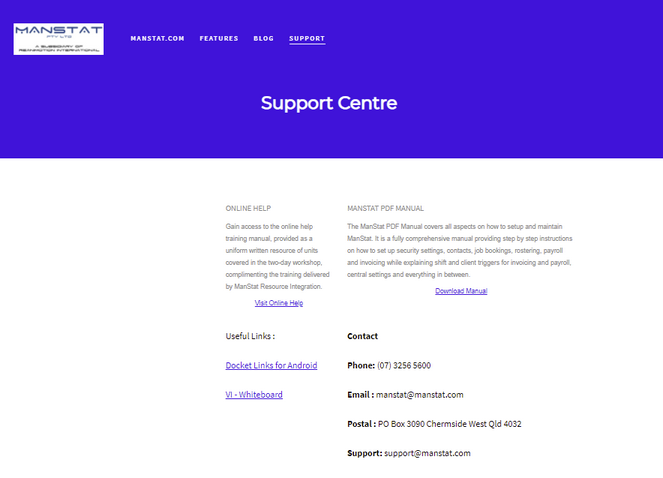
go to the support page ( www.manstat.com/support )
Click on docket application link ‘Dockets Links for Android’.
2. Select Install
3. Start the application
4. Enter activation code (this can be obtained via Manstat support)
***Note: The activation code is specific to your company and is only required the first time you run the application
5. Enter a valid employee contact code
Job dockets belonging to that employee will appear on the tablet, showing the docket number, client, the date and time and location of the job for as shown below.
6. Close the application and then place the application link (green paper-clip) on the main screen for future easy access
Using day to day:
1. Start the application
It will verify activation and present you with a login page
2. Enter your employee contact code
Job dockets belonging to you employee will appear on the tablet, showing the docket number, client, the date and time and location of the job for as shown below.

3. Tap the docket.
The following screen should appear:
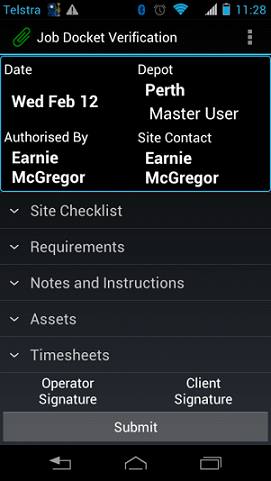
The docket screen is broken down into sections
4. Select Site Checklist to enter in job information as required.
With the Requirements and Assets sections, the tablet will list information an items specific to the needs of this job (there is the ability to change information if necessary. Please follow company procedures)
Notes and Instructions relate information collected during the job booking at the office and cannot be changed at present.
5. Click on Timesheets and the ‘team leaders’ name to enter times worked. Here you can enter travel, job start & finish and break start & finish times. You can also click on ‘Use this timesheet for and tick on the rest of the crew if times are the same. Once
times have been entered, press OK.
6. Click on Operator Signature to sign the docket (team leader) and then Client Signature so the client can sign the docket (if available).
***Note: If the Client Signature is completed first, this locks the docket. Unlock the docket if required by going to the Menu item on your tablet and selecting Unlock Docket.
7. Once docket has been filled in completely and signed, hitting the Submit button will send the information back to Manstat. If the tablet or phone is not connected to the internet or the vehicle a message will pop up advising the connection was not made and the docket will have to be submitted again once the connection is re-established.