|
Creating a Purchase Order |
  
|
|
Creating a Purchase Order |
|
1. Go to Administration, Purchases, Purchase Order Maintenance
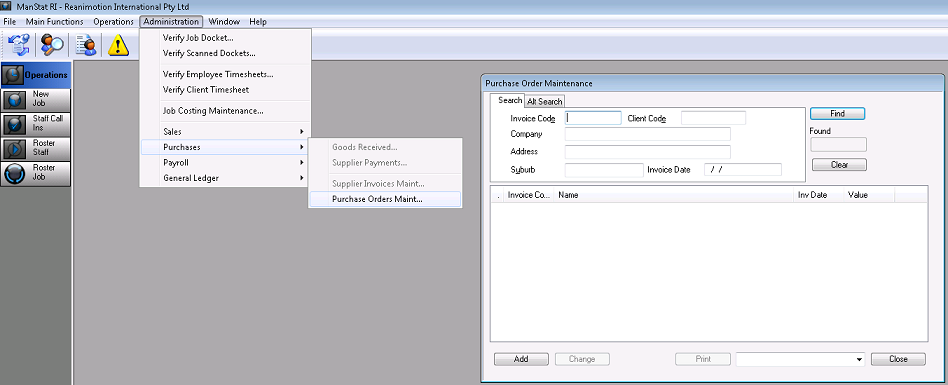
2. Before selecting add, click on Contact Maintenance Icon  and find clients Contact Code (refer to Chapter 3.6 Find and Update Contact Details)
3. Click on Add in Purchase Order Maintenance Screen and the following box will appear
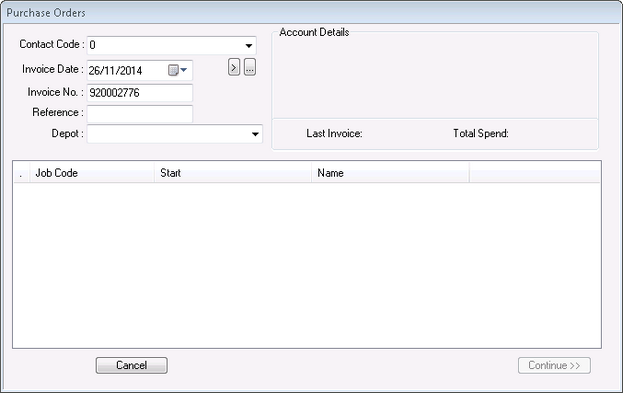
4. Select the client contact code in the drop down box
The PO date & number will automatically be generated by ManStat.
5. Enter in desired Reference and Depot. Select Continue and the following box will appear
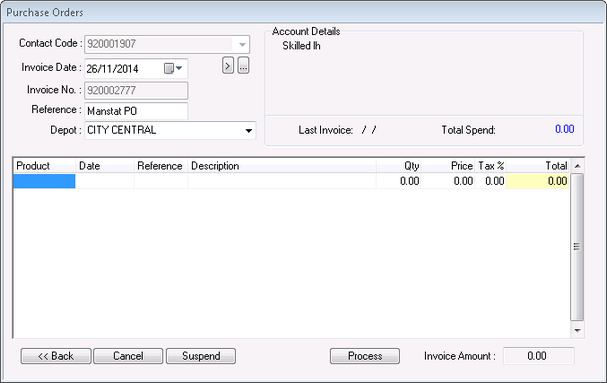
6. Find the codes of what you want to price in the PO by going to Reports  , Master Setup, click on cross next to Product Resource & Cost Centre Links and OK
7. Enter in the codes desired under the Product heading in the PO screen and tab to get the Description and pricing.
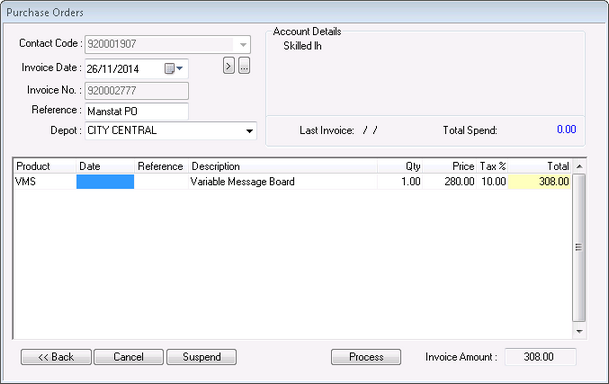
8. Once complete, select the Process button
9. Find the PO created in the PO Maintenance screen, highlight and press Print