|
Automatic Pay Level/Type Change |
  
|
|
Automatic Pay Level/Type Change |
|
To set up an automatic pay level change for an employee –
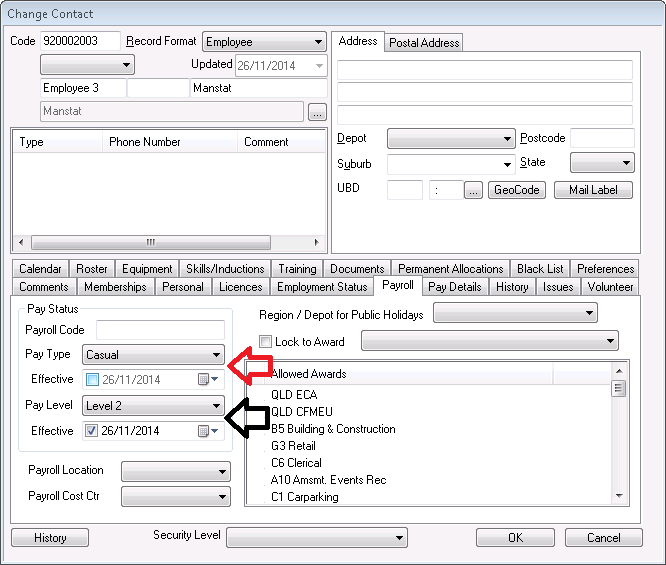
1. Go to Contact Maintenance, Find and select the desired employee and in the Payroll tab of the employee record, tick the effective date the change is to be made.
2. Select the pay level that the employee will be moved to (as indicated with black arrow in image below)
3. Click OK.
Example: If we set the pay level to 3 and effective date is ticked, we pay level 2 until the effective date.
To set up an automatic pay type change –
1. In the Payroll tab, tick the effective date the change is to be made.
2. Select the pay type that the employee will be moved to (as indicated with red arrow in image below)
3. Click OK.
Example: If we set pay type to part time and the effective date is ticked, we pay them as a casual until the effective date. Please note that the casual pay type will be the initial pay type before any of the other pay type changes (part time, fulltime etc.) if the effective date is ticked.