|
App Configuration and User Permissions |
  
|
|
App Configuration and User Permissions |
|
1. Permissions
Throughout this manual the "Permission" term will be in use. However, there are two different categories/types of permissions we will talk about,namely App permissions and User permissions.
1.1 App permission
When you install MyManstat, you can control which capabilities or information it can access—known as permissions. For example, MyManstat needs permission to the device's location and camera. You can control which permissions it can have after the app installs on your device by allowing or denying them from the permission pop up or alternatively from the "Settings" app of you device.
At your first login or when trying to take a photo from MyManstat app you will be ask to allow or deny these permissions as you can see in the following image. You need to tap "Allow" if you want to use these functionalities of the app.
If you once deny it, you may no longer be presented by the pop up dialog to allow or deny the permission.
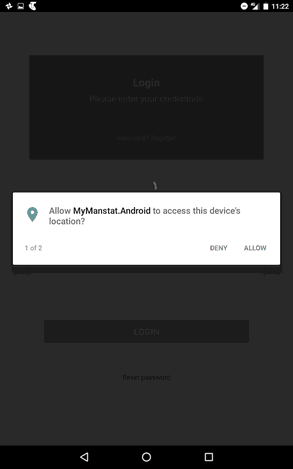
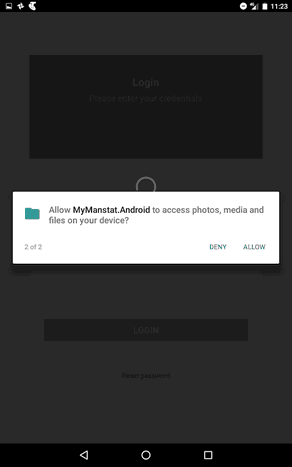
Also,you can change these permissions in the "Settings" app on your device at any time. Managing the app permissions is slightly different between Apple and Android devices.
| • | iPad/iPhone: Open "Settings" app of your device, and scroll down to the list of apps,and find MyManstat. Tap it and you’ll see the permissions it wants under "ALLOW MYMANSTAT TO ACCESS" heading where you can enable or disable the permissions . |
| • | Android Tablets/phones (android 6.0 or up ) : On your device, open the "Settings" app. Then tap "Apps" under the "Device" heading. From the list of apps, scroll down to find MyManstat. Tapping it will open "App info" page. From there tap "Permissions" and turn permissions on or off. For other android versions you can research controlling app permissions on your device version. |
Again,keep in mind turning off permissions may cause the app to lose some of its functionalities.
1.2 User permissions
MyMnastat uses a set of defined user permission granted to the app users by their company/employer, to define and manage access level and capabilities of the user (MyMnastat operator).
During your log in process, list of your permissions will be retrieved and used to design the app views and user interface.Therefore, different users may have different views when they log in to the app.
These permissions may be different on tablet and phone (iPad and iPhone) as well. As an example, a user may have permission to complete checklist for a job on a tablet/ipad but not on a phone/iPhone.
The following images shows Welcome and Job Details pages on both tablet and phone for the same user (John Andrew).
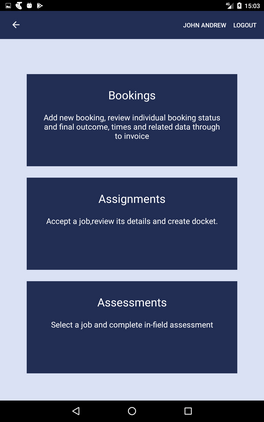
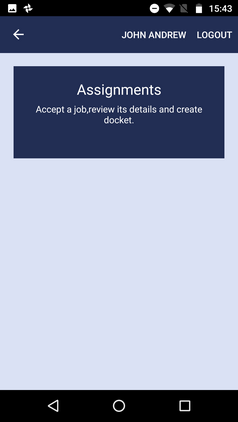
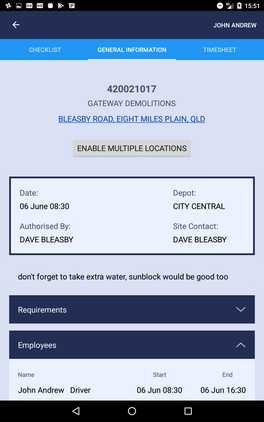
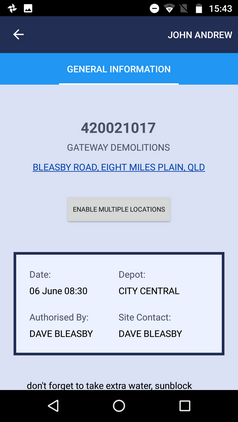
Welcome page tablet View Welcome page phone View Job details page tablet View Job details page phone View
As you can see in this example, the "CHECKLIST" and "TIMESHEET" tabs are not available on phone view of Job Details pages.