|
Adding an Employee |
  
|
|
Adding an Employee |
|
Adding a New Employee
1. Go to Main Functions on the top bar and click on Contact Maintenance.
2. Select  at the bottom of the "Contact Maintenance" window, the "Add Contact" window will appear as below. The Record Format will default to Client Contact.
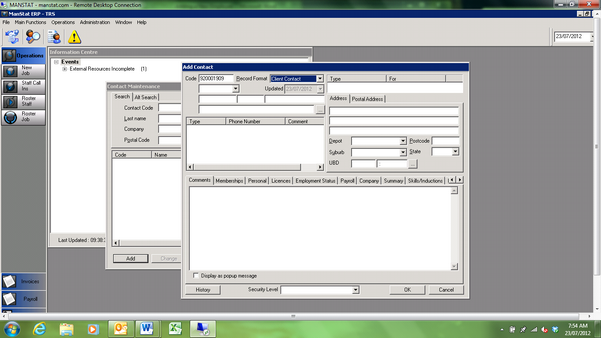
3. Select Record Format a drop down box will appear, select Employee
4. Select title from the drop down box
5. Input Name, last name first, middle name then first name
6. Input Address in the Address tab located to the left section of the window
7. Select Depot i.e. Geraldton from the drop down box located just below the address section
8. Input Suburb, State and postcode located in the same area
9. Right click over phone number blank area as above there will be a selection of 5 options
10. Select Add Phone Number, the Add Phone Number Window should then appear as below
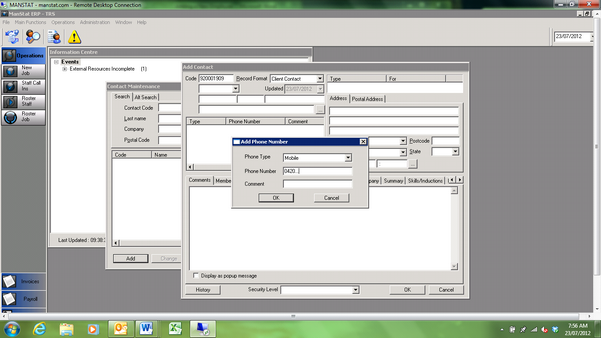
11. Input phone type from drop down box
12. Input phone number ensuring that the area code is also input with no spaces or brackets
13. Input Comment (example shown), when inputting the next of kin phone number ensure that the name of the next of kin is placed in this section
14. Click OK
15. Repeat until all contact numbers and emails are input
16. Select Personal Tab from the tab menu in the middle of the window
17. Click Start Date select the date from the calendar as shown
18. Click Date of Birth and select or input date of birth
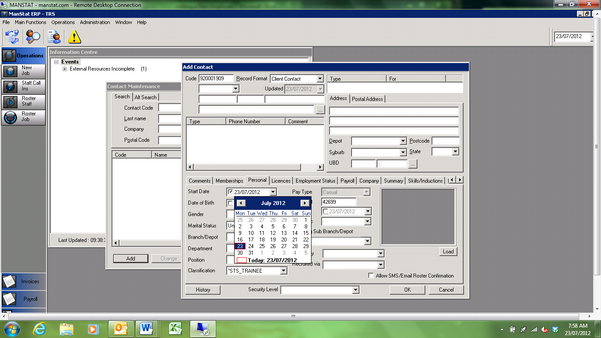
19. Select Gender from drop down menu
20. Select Branch i.e.(Your depot)
21. Select Department from drop down
22. Select Position from drop down menu
23. Select Classification **Note in order to be a driver you must select a “DRI” classification**
24. Select Co Op Lic as Valid if the person can drive a company vehicle
25. Click on the check box to Allow SMS/Email Roster Confirmation
26. Select Licenses on tab menu bar
27. Right click in Type blank space a selection of 3 should appear
28. Select Add License as above
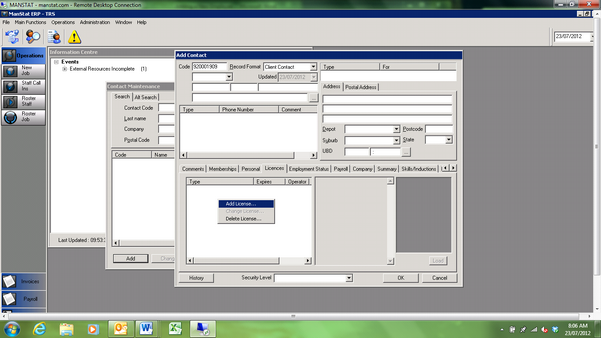
29. Select Type of license to be added from drop down menu
30. Input Expiry date from calendar
31. Input notes (This should include license number and any conditions on number)
32. Click OK in the window
33. Repeat until all licenses and certificates are input
34. Click the small square below the first name ; this signifies which parent company the employee will be allocated
35. Contact Find window should appear as shown below
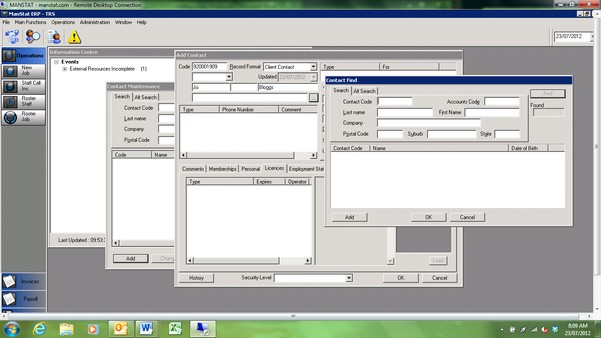
36. Go to Alt Search and from the drop down arrow for Contact Type, select System Account
37. Click Find in the window
38. Double click on Your Company. The employee is now linked to the company
39. Click on the Payroll tab
40. Copy the employee accounts code into the Payroll Code section of the Payroll tab (highlighted in blue below) **Note this code is imperative for the payroll to be correct**
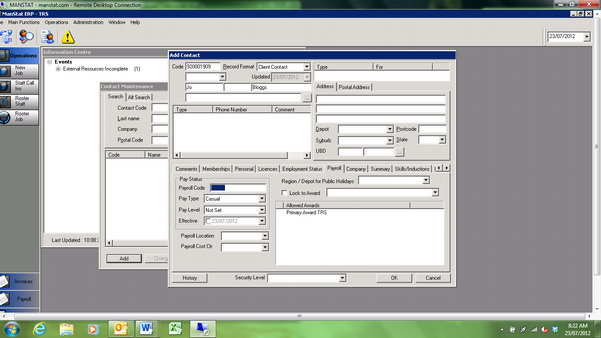
41. Input the Pay Type i.e. Casual/Fulltime/Part-time (DO NOT TICK THE EFFECTIVE DATE – unless you are aware of the exact date they need to be paid from)
42. Input the Pay Level i.e. Level 1 is generally selected for new employees as shown above (DO NOT TICK THE EFFECTIVE DATE – This refers to when an employee’s levels change not when they start working)
43. Click OK
44. Search in Contact Maintenance and check to see if employee was entered correctly