|
Adding a Client Contact |
  
|
|
Adding a Client Contact |
|
Adding a Client Contact
1. Go to Main Functions on the top bar and click on Contact Maintenance.
2. Select  at the bottom of the "Contact Maintenance" window, the "Add Contact" window should appear as below. The Record Format should default to Client Contact.
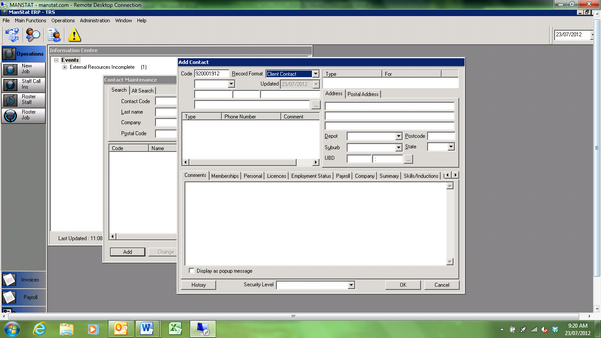
3. Add the contact name.
4. Add the contact numbers and email by right clicking in the box under Phone Number.
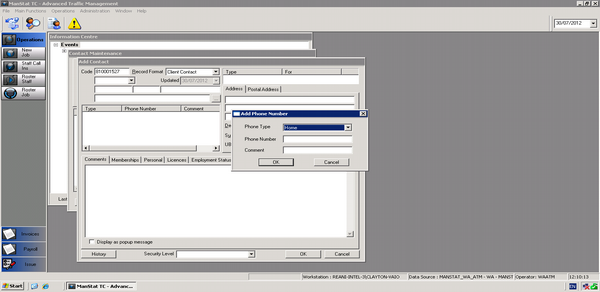
5. Click on the button with  that’s located underneath the surname section and it will bring up the Contact Find search box as shown below.

6. Type in the company name that you’re looking for in the Company section and press Find.
7. Double click on the company you want from the list provided and it will appear in the original Add Contact screen in the Company section.
** Note it is important this is linked correctly or the contact will not be available for job booking**
8. Press OK. Now the contact is linked to the company
9. Press OK on the Add Contact screen. Your new Client Contact is in ManStat