|
Compliance |
  
|
|
Compliance |
|
Compliance Maintenance is used to track issues, complaints, incidents etc.
1. Go to Main Functions, Compliance Maintenance or select this shortcut  , located at the top of the ManStat screen.
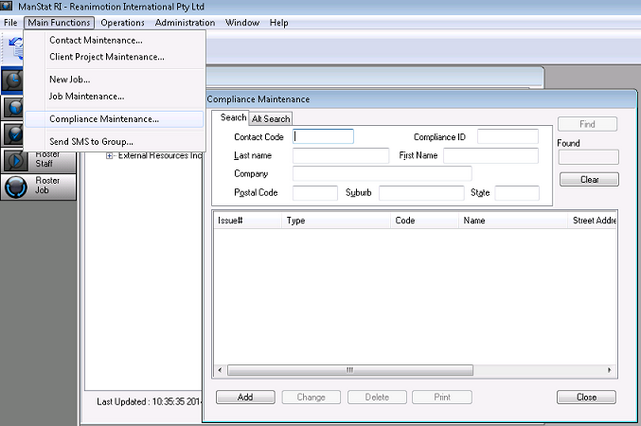
2. Click on the Add button on the Compliance Maintenance screen and the following screen will appear

3. Enter the Issue Type (Complaint/Major Incident etc.)
4. Select the Date the Issue Began
5. Select the Expected Complete by date
6. Select the Initial Notification from Us date
7. Leave the Issue Completed Actual date until the compliance issue is resolved.
8. Select the Status of the issue (e.g. Started)
9. Select the Level of the issue (Minor/Normal/Serious)
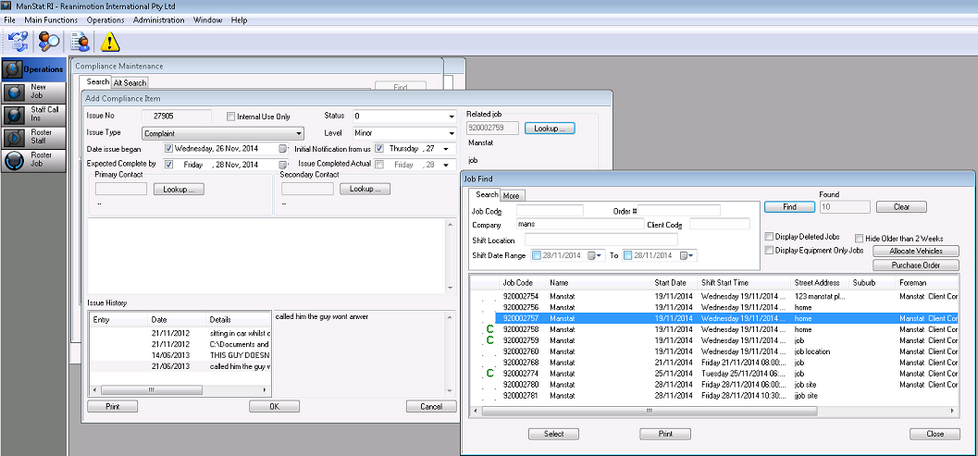
10. In the top right hand corner of the Compliance Maintenance screen, link the job related to the issue (if necessary) by hitting the Lookup… button. The Job Maintenance screen will open. Search for the desired job and double click on it to link the issue.
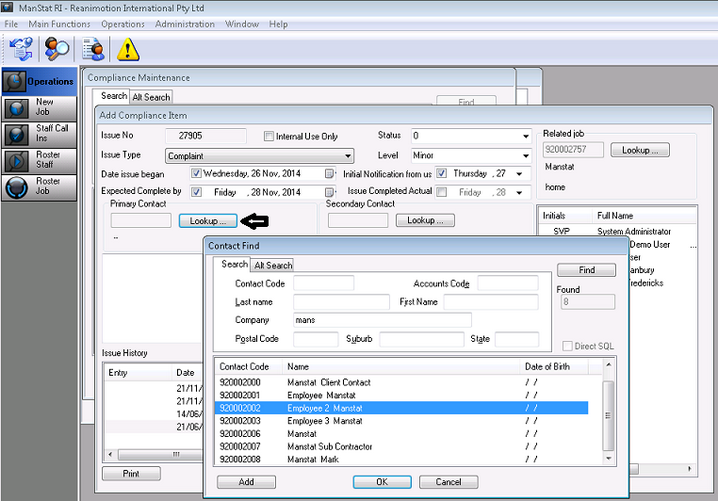
11. Link the desired contacts to the issue. There is space for 2 (Primary & Secondary) contacts to be linked and this is done by clicking on the Lookup… buttons in the middle of the screen. The Contact Maintenance screen will appear, search for the contacts needed and double click on the contact name once it appears. These contacts can be employees or clients/client contacts.
12. Towards the bottom left hand corner is the Issue History section. Photos or other files can be added by right clicking in the space and selecting the Add File option. Issues can also be added by selecting Add Issue. Select the desired issue from the drop down arrow, ManStat will add today’s date automatically and there is space to add extra notes to said issue if required.
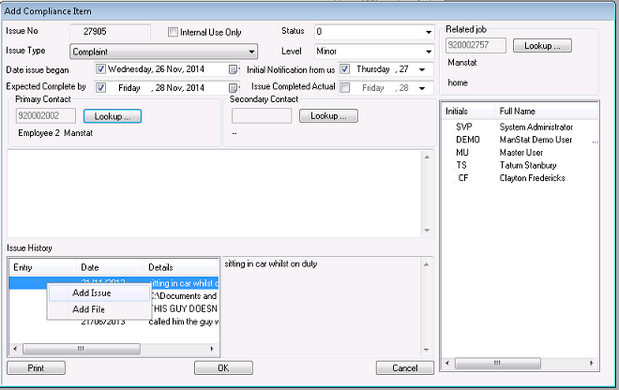
13. Towards the right of the Compliance Maintenance screen is a section with initials and full names of all ManStat users. Double clicking on a name (green tick) will make that person responsible for the tracking of the issue. Once the issue is complete, double clicking on the same name again (green C) means that the person has now completed the tracking of said issue and ManStat will no longer remind that person in the Information Centre that they have a Compliance Issue to look after. This will make a reminder come up on the persons Information Centre until they have followed the issue through until its completion.
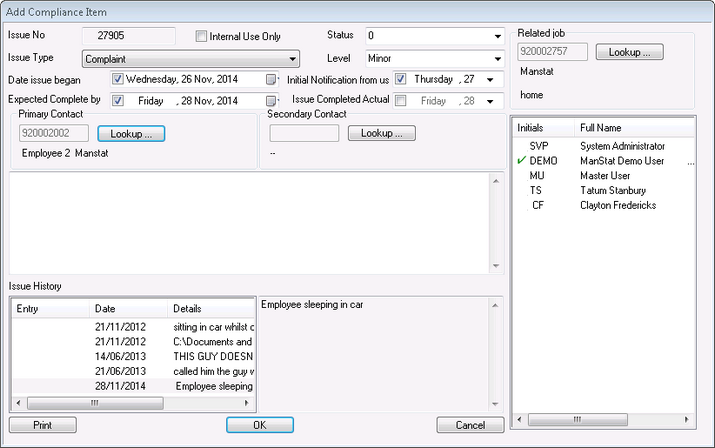
14. If needed, there is a blank box in the middle of the Compliance Maintenance screen to add any extra notes if required.
15. Once the issue has been completed, search for the desired issue by opening up Compliance Maintenance (Main Functions, Compliance Maintenance) either by the date, issue type, company, job or contacts linked to the issue.
16. Once the issue is found, highlight and select the Change button.
17. Change the status to resolved (top middle right of screen), select the Issue Complete Actual date and double click the person responsible for following up on the issue so that a green C appears next to their name.
18. Press OK.
This issue once complete, will show up in the related employees’ History in the Issues Tab.