|
Creating RCTI's |
  
|
|
Creating RCTI's |
|
1. To create a Recipient Created Tax Invoice (RCTI), go to Administration, Purchases, Supplier Invoice Maintenance

2. Select the Add button on the Supplier Invoice Maintenance screen
3. A message will appear “Generate Invoices for Subcontractors?” Select Yes.
4. The RCTI Creation screen will appear – select a date range, company, depot, batching, using date etc. and press Ok.
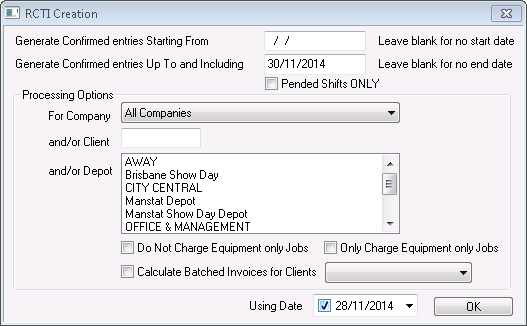
5. Follow the prompts to create RCTI’s.
6. Completed RCTI’s can be viewed in the Supplier Invoice Maintenance screen.
The subcontractors are processed as though they are employees of the supplier but using the billing side of the supplier default award (not the job award).
This allows special supplier based awards if needed if the billing side of the award is used.
***Note: Do not enter payroll codes or account codes for subcontractors or suppliers