|
Printing a Report |
  
|
|
Printing a Report |
|
ManStat comes with a number of standard reports, particularly for issue management.
To open the reports window either click on the Reports  button on the ManStat toolbar or select File, Print Reports and the below screen with appear.
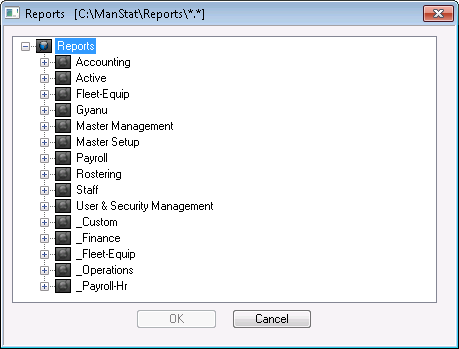
You will then be presented with the reports window.
Reports are grouped into sections which are listed in the reports window. Each section may be opened by clicking on the plus sign to the left of the section descriptor. An individual report can be executed by clicking on that report and pressing OK, or by double clicking on the report item. For example, to execute the Outstanding Issues Summary Report, click on the plus sign to the left of Issue Management and then double click on the Outstanding Issues Summary report item. The report will then execute and will be displayed on screen or printer depending upon which was selected as the output device.
Note, on some occasions, the report window may be created however; focus will remain on the ManStat window. If this occurs, you should see an additional item on your task list which is normally across the bottom of your screen. Clicking on this item will bring the report onto your screen.
It should be noted that some reports require parameters.
Once a report is generated, the report can be left open and refreshed by clicking on the  button at the top of the report.
To get a printout of the report, click the  button.
To export a report to a file on your computer, click the  button, click OK when the format box appears (PDF), click OK when the Export Options box appears, choose a file to export to and press OK.
This  has the same function as Control F (Find). Search under a particular employee name etc. and ManStat will display related report information only.