|
Changing your password |
  
|
|
Changing your password |
|
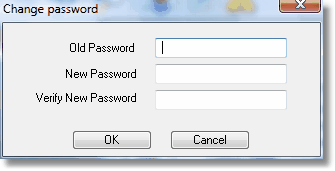
To change your password, simply select System from the Setup menu located at the top of the ManStat screen, and then select Change Password. This will reveal the Change Password screen.
You can also access this screen by clicking on the Change Password button located in the Change Operator screen. (For more information on the Change Operator screen, please refer to the Help chapter entitled "Operator Security Maintenance".)
In the first field, enter your current password. In the next field, enter the new password you wish to use. Then re-enter your new password in the Verify New Password field.
Once you have entered the required information into these three fields, click on the OK button located at the bottom of the Change Password screen. ManStat will now recognise only your new password. If you do not wish to continue with changing your password, simply click on the Cancel button located at the bottom of the Change Password screen.